> For the complete documentation index, see [llms.txt](https://help.stringeex.com/stringeex-tong-dai-cham-soc-and-quan-ly-khach-hang/llms.txt). Markdown versions of documentation pages are available by appending `.md` to page URLs; this page is available as [Markdown](https://help.stringeex.com/stringeex-tong-dai-cham-soc-and-quan-ly-khach-hang/en/iv.-frequently-asked-questions/15.-how-to-change-ivr-queue-waiting-ringtone.md).
# 15. How to change IVR/Queue waiting ringtone
With actual changing needs, it is necessary to change the waiting ringtone to suit the business from time to time
## Change the ringtone of Nodes in IVR
If a business needs to change the waiting ringtone at the nodes of the IVR tree assigned to the hotline, users should follow these steps:
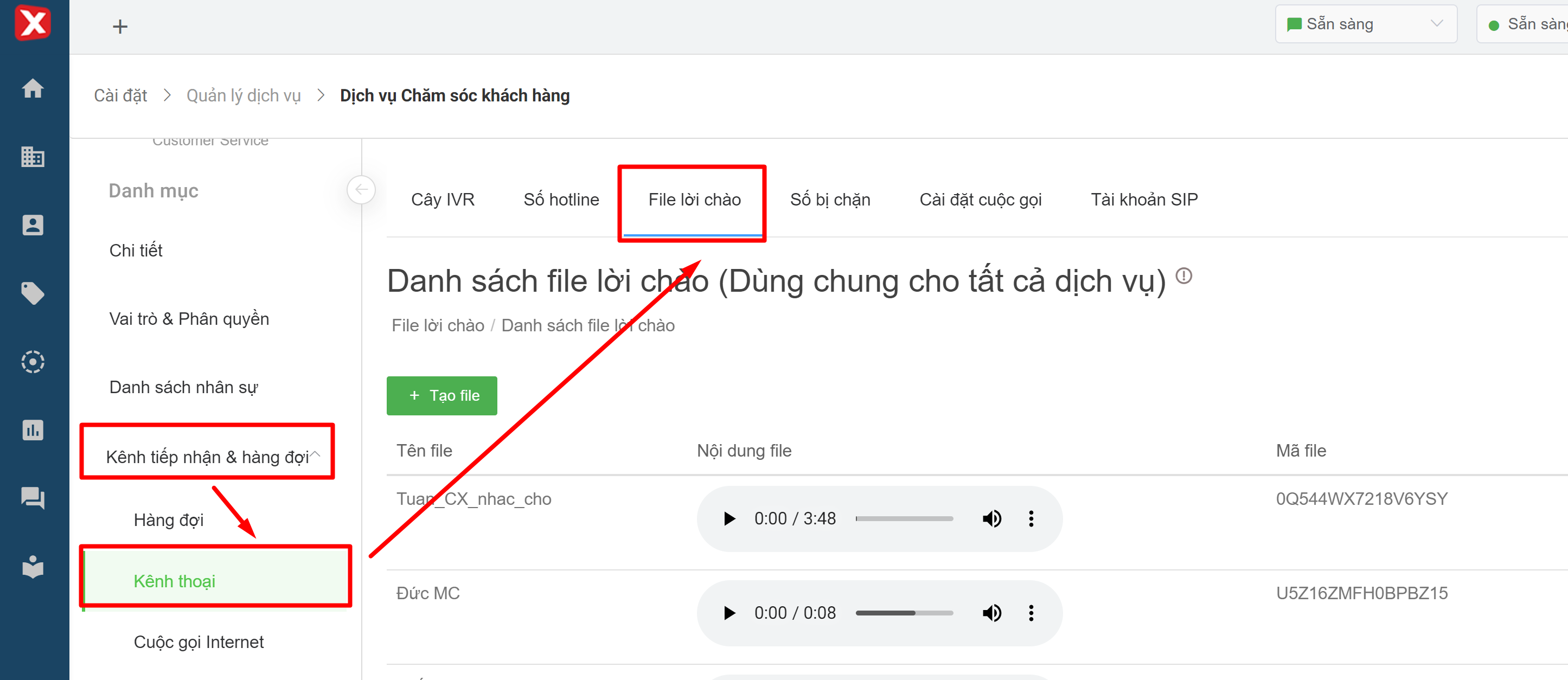
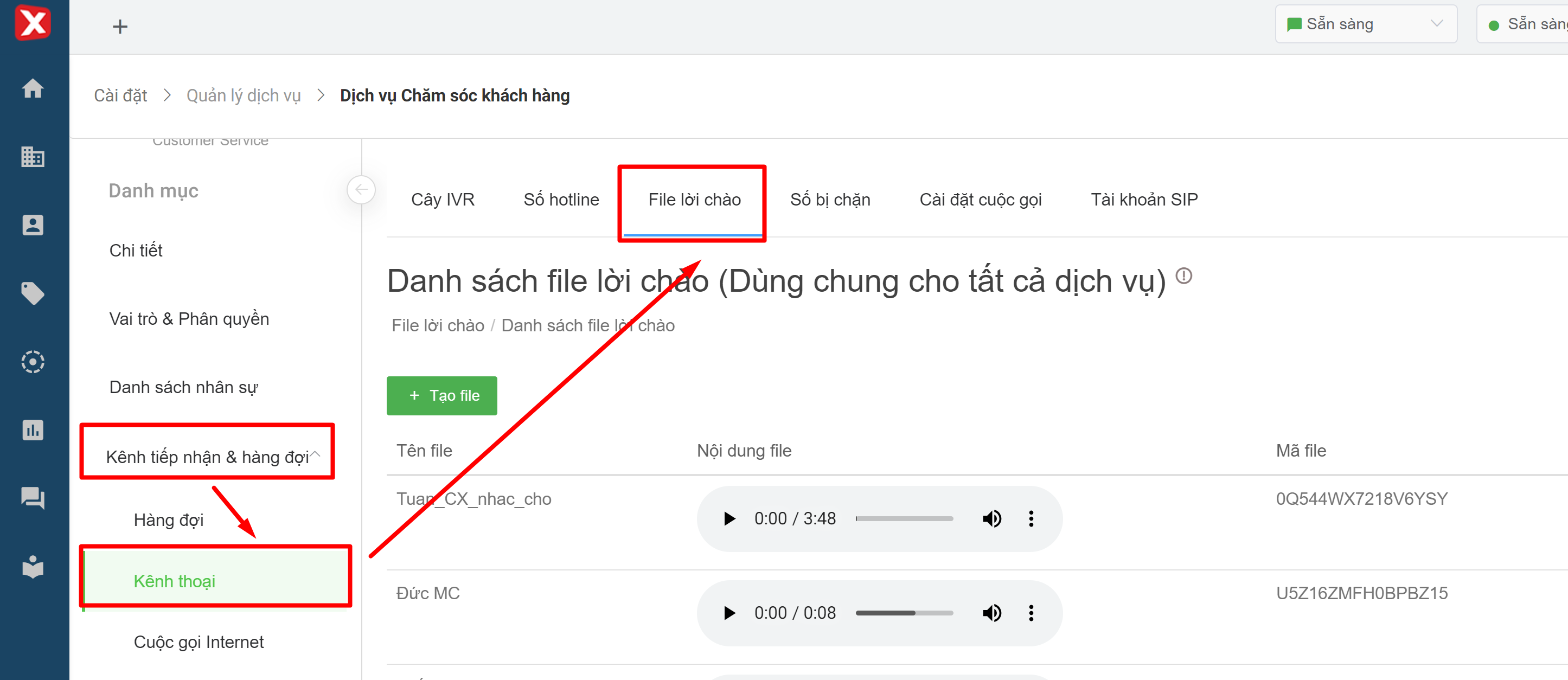
* **Step 1:** Upload the music file to the "Greeting file" section, select Create file and upload the music file (**Note: Uploaded music files must be in .mp3 or .wav format**):
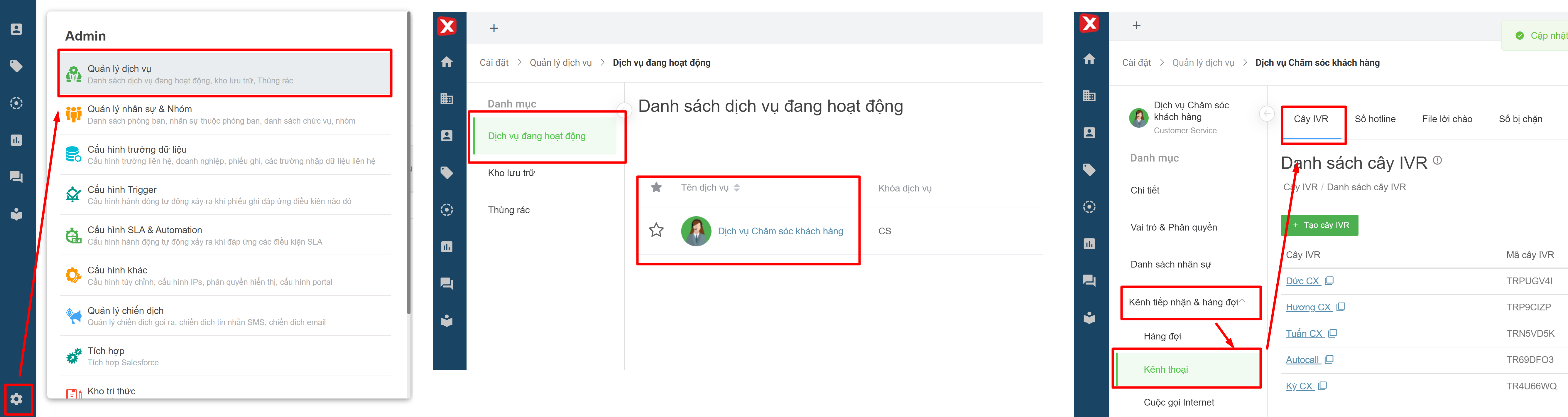
* **Step 2:** Select the corresponding IVR Tree:
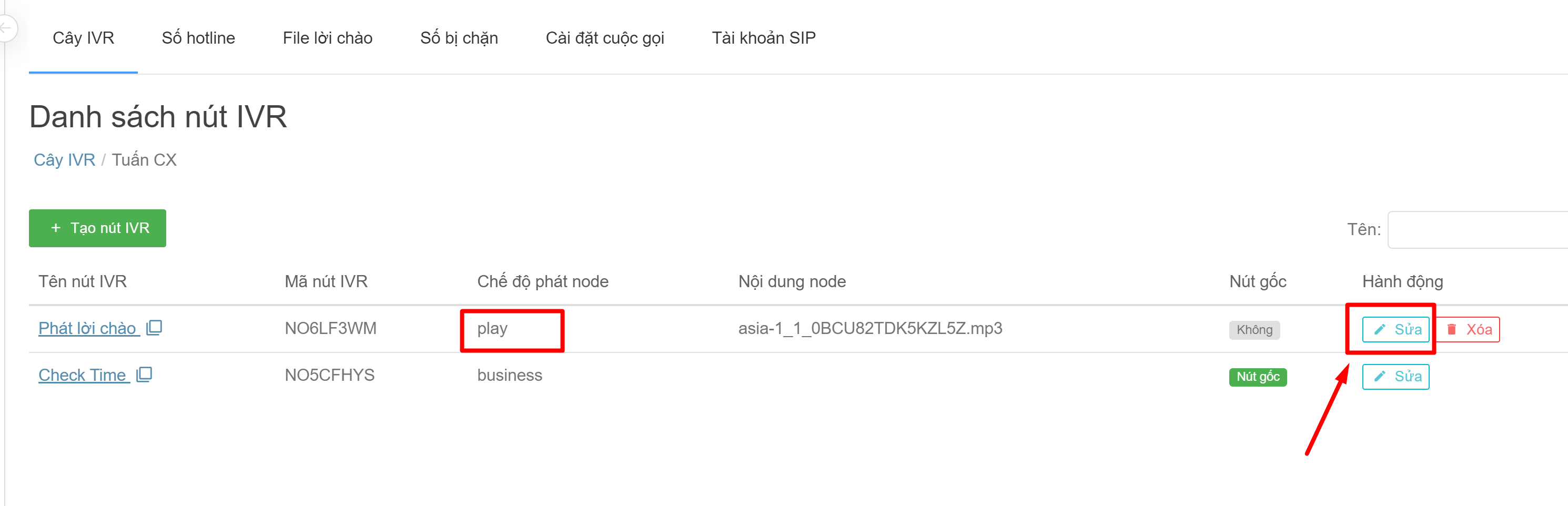
* **Step 3:** Edit in IVR note having broadcast content. After clicking on the IVR tree, a list of nodes appears. The user identifies the node that needs to be changed. Select edit and the music file that needs to be changed, the music playback nodes have "Node play mode" as "play":
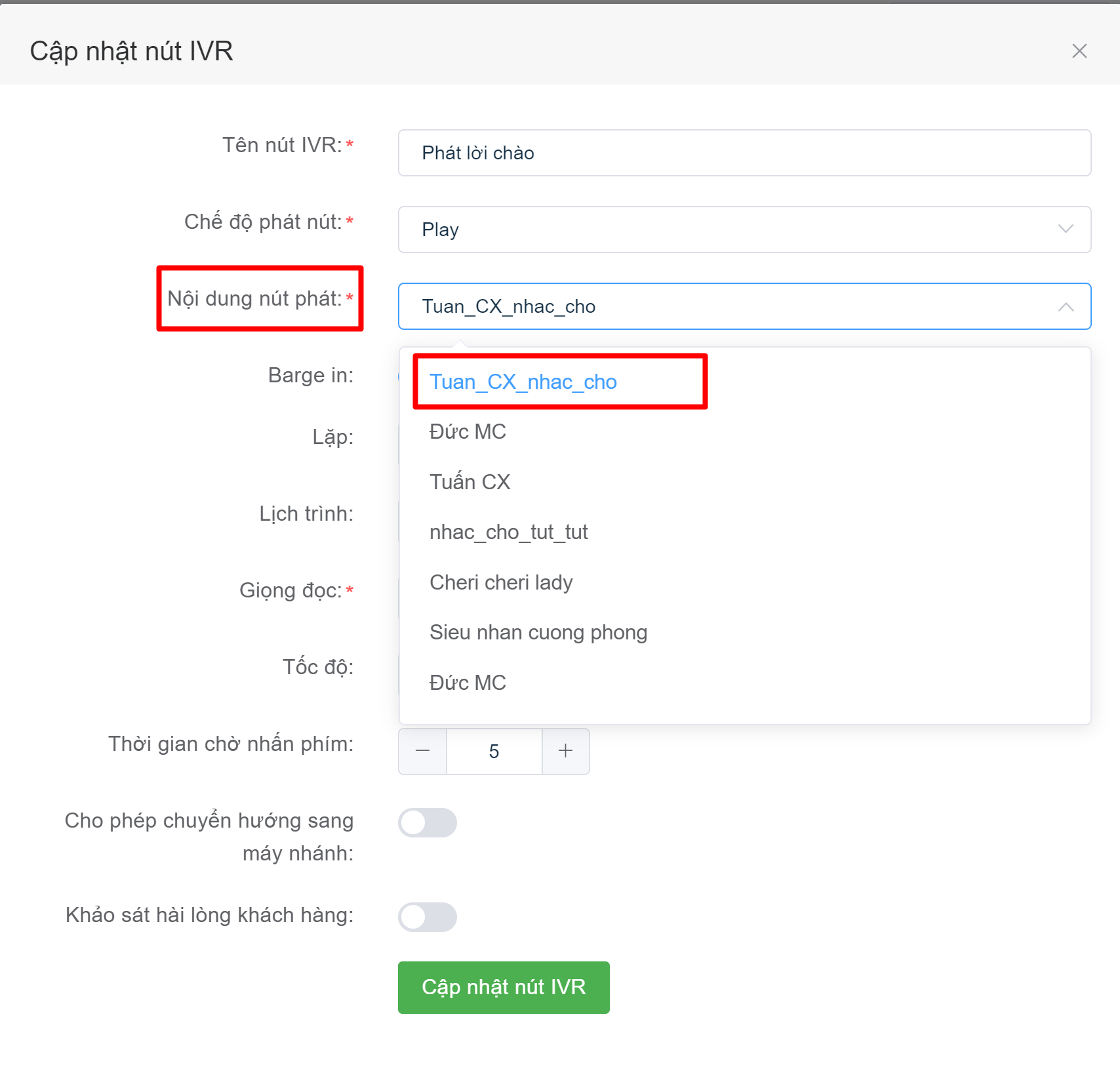
* **Step 4:** Change music files. Users can change by selecting a new music file in the "Play button content" section:
## Change the waiting ringtone in the queue
In case a business needs to change the waiting ringtone in the queue, users should follow these steps:
* **Step 1:** Upload the music file to the "Greetings file" section, select create file and upload the music file (**Note: Uploaded music files must be in .mp3 or .wav format**):
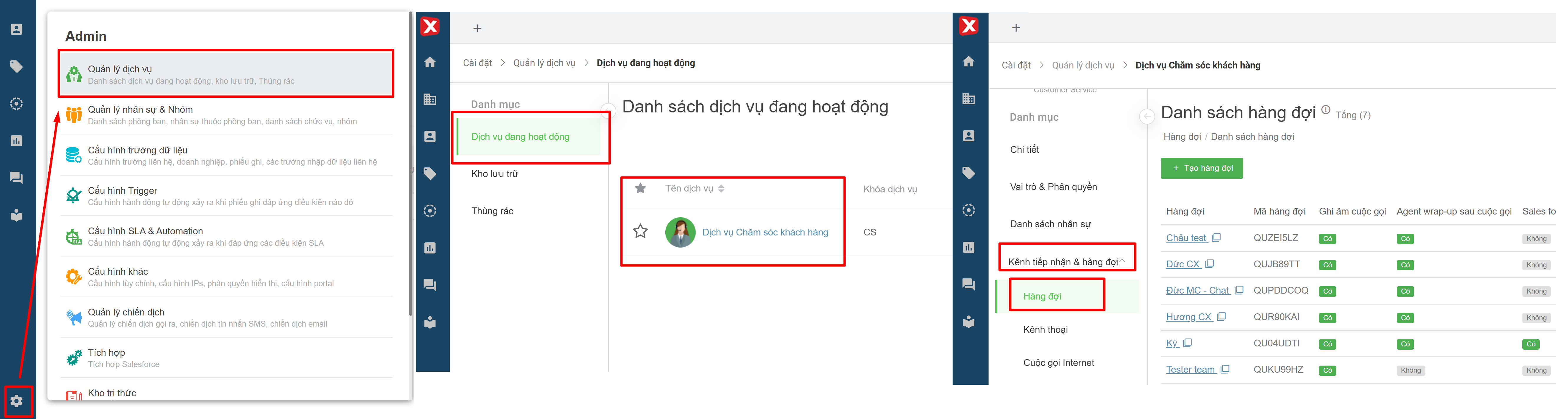
* **Step 2:** Find the queue list that needs to update the waiting ringtone:
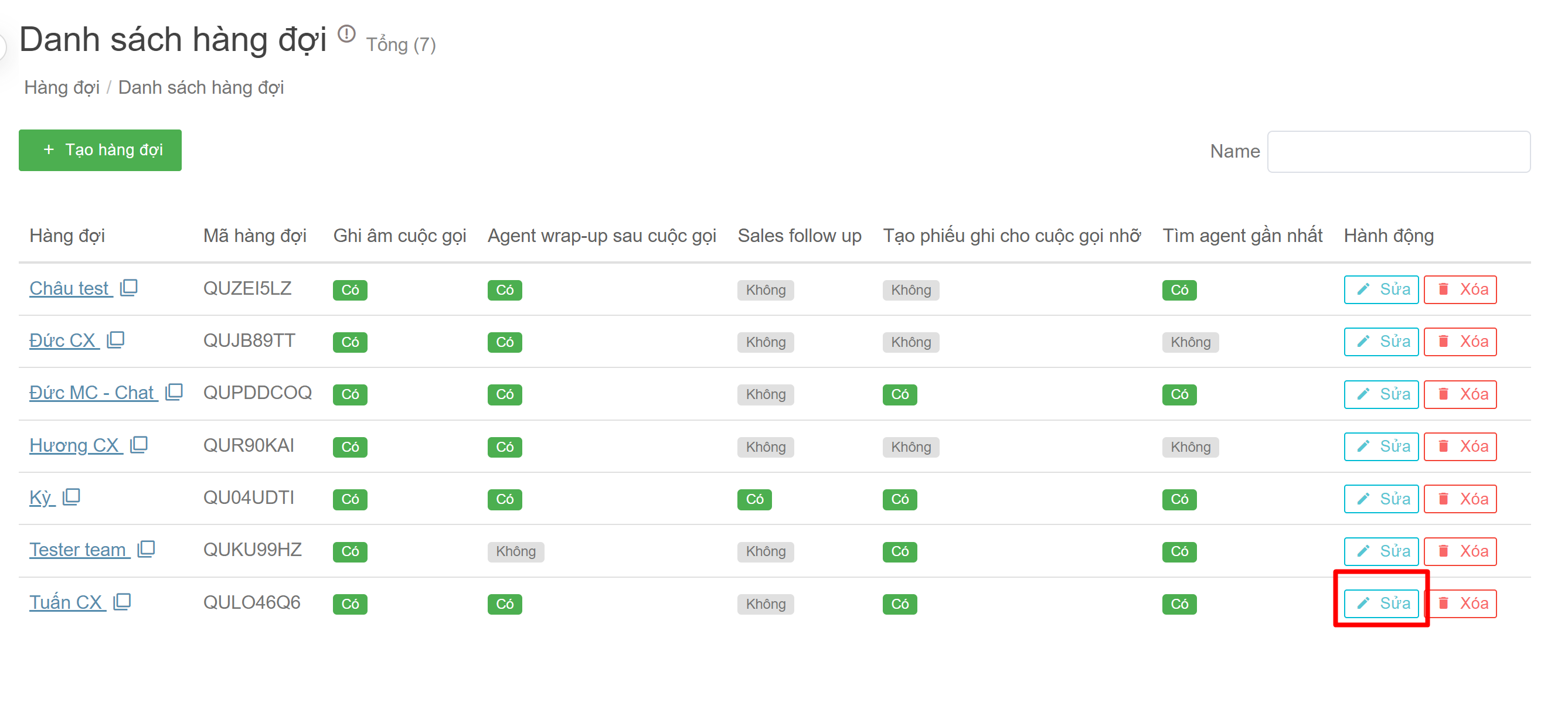
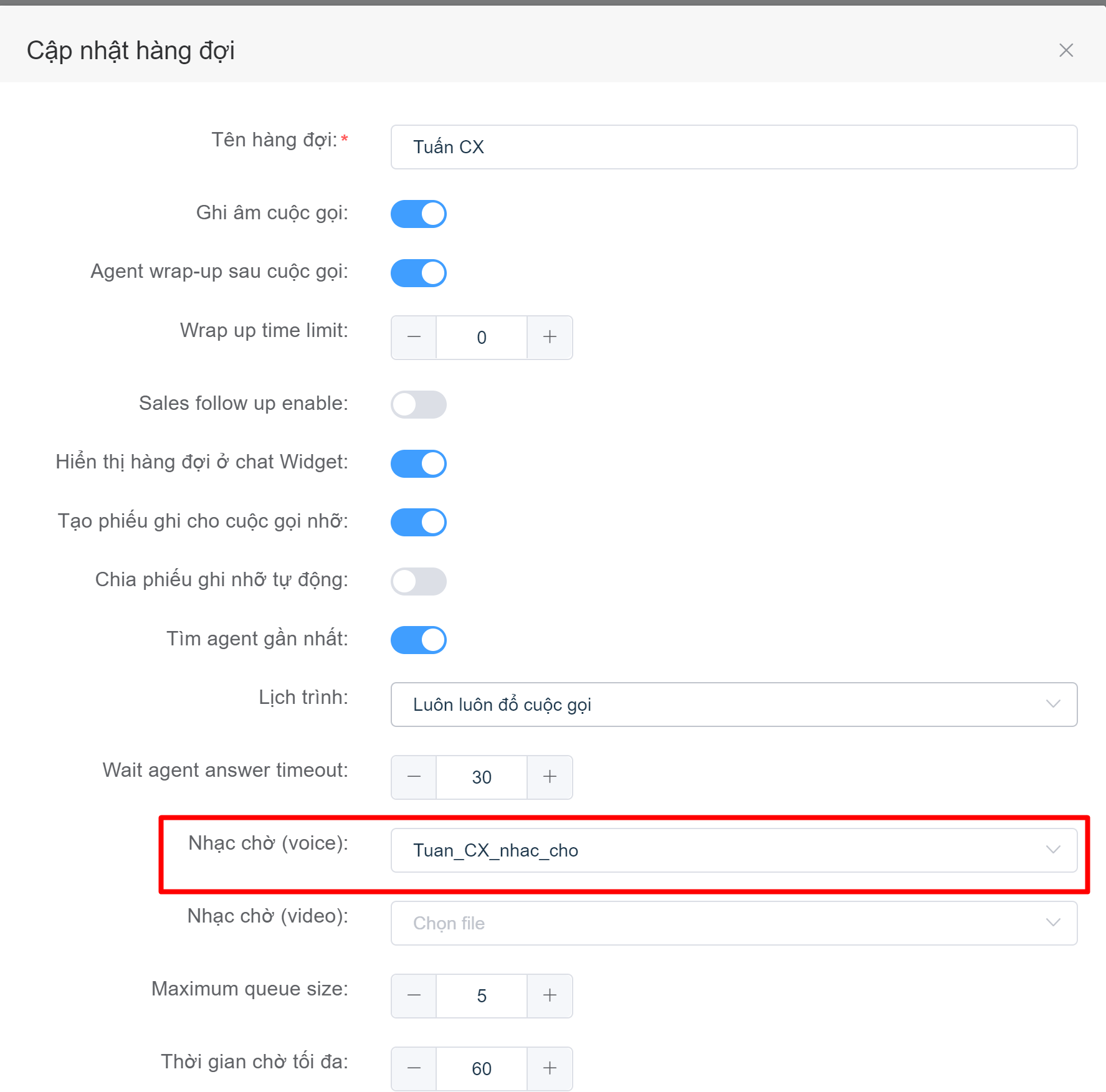
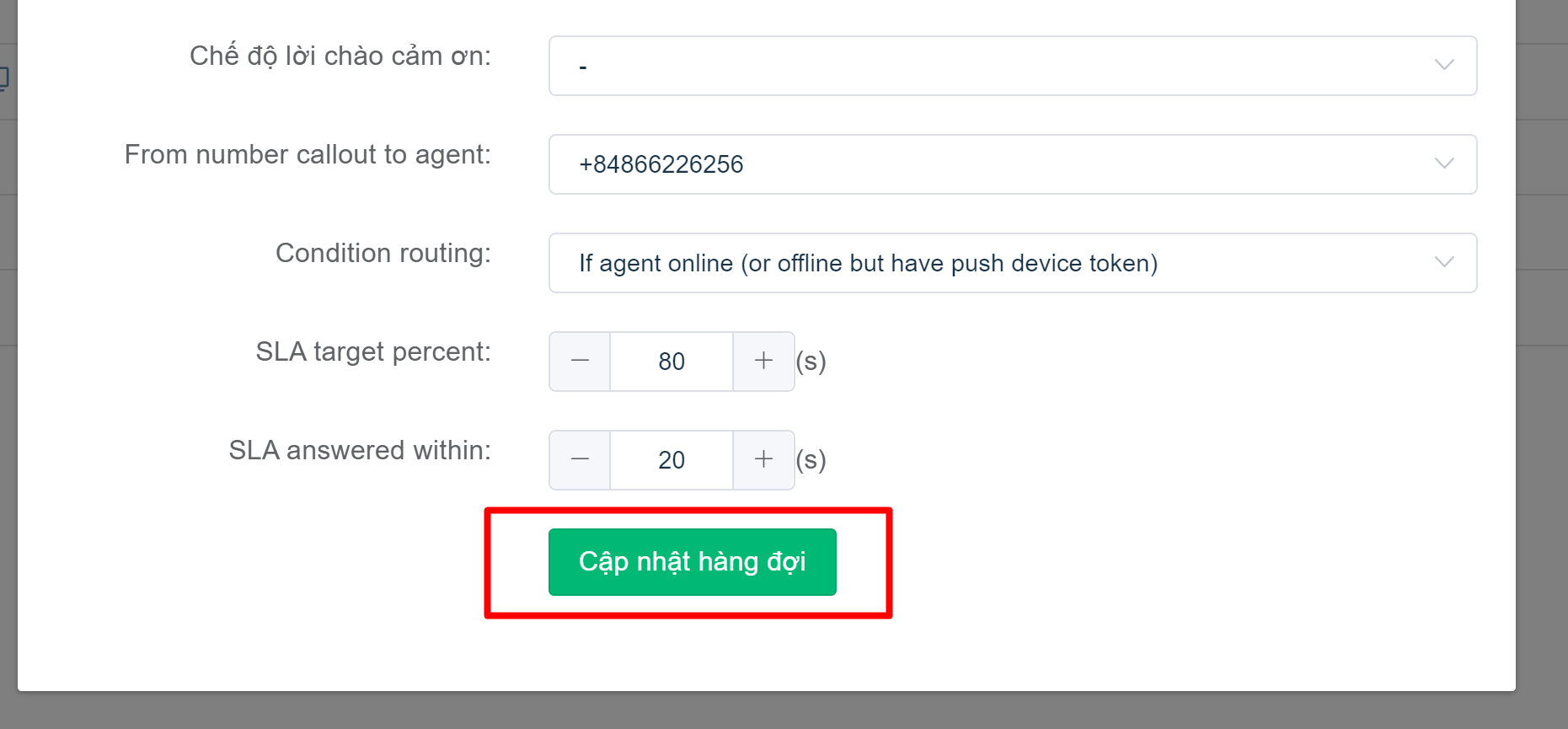
* **Step 3:** In the queue list, select the "Edit" button, navigate to the "Waiting ringtone (voice)" section, and select a new waiting ringtone. After completing the operation, click "Update queue" to save changes: