> For the complete documentation index, see [llms.txt](https://help.stringeex.com/stringeex-tong-dai-cham-soc-and-quan-ly-khach-hang/llms.txt). Markdown versions of documentation pages are available by appending `.md` to page URLs; this page is available as [Markdown](https://help.stringeex.com/stringeex-tong-dai-cham-soc-and-quan-ly-khach-hang/en/ii.-system-features/9.-settings/9.7-campaign-management/9.7.3-email-campaign/do-not-send-email-list.md).
# Do-not-send email list
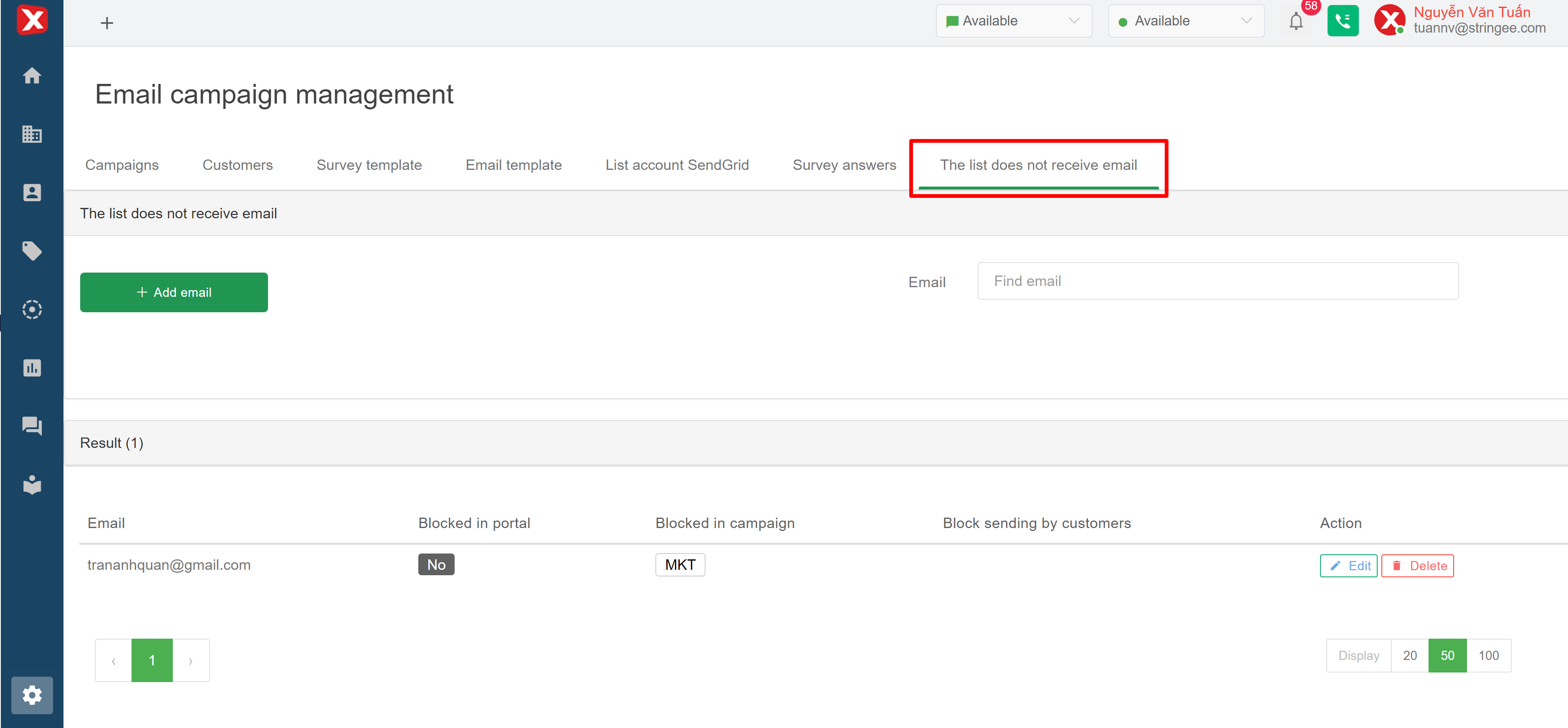
This feature allows users to add/remove emails that are not allowed to be sent out
## Interface of do-not-send email list
* **Email:** email address
* **Block the entire portal:** enable/disable blocking the whole portal to not allow sending out
* **Block by campaign:** enable/disable block by campaign, users can still send to this email in other email sending parts other than email campaign
* **Block sending by client:** Block sending by client
* **Action:**
* **Edit:** fix blocked email info
* **Delete:** delete the corresponding email
## Block emails on the system
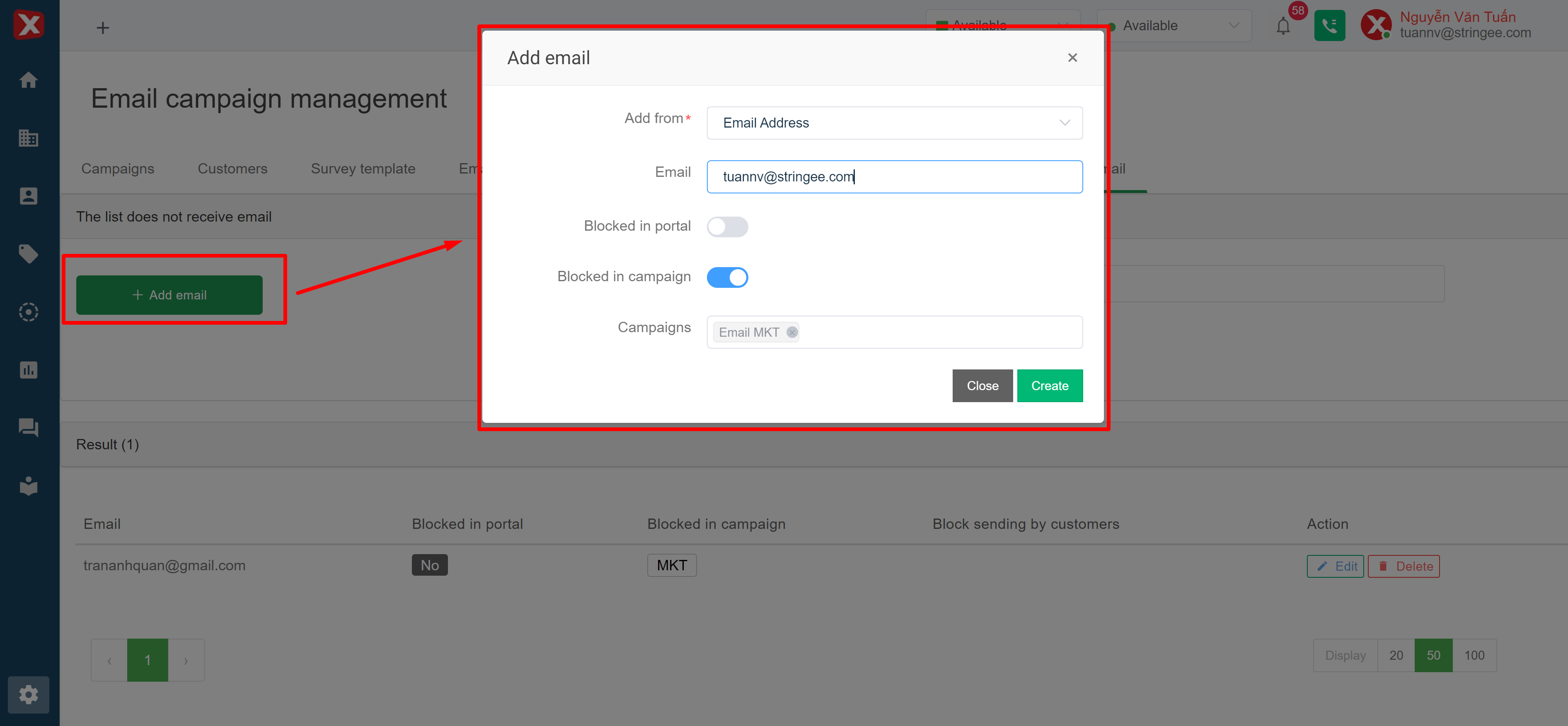
On the screen of the list that does not send email, the admin clicks "Add email". The adding email screen opens, the admin enters the necessary information as shown in the picture:
* **Add words:** choose whether to add each email or add it in bulk from an excel file
* **Block the entire portal:** enable/disable to block the whole portal to not allow sending out
* **Block by campaign:** enable/disable to block by campaign, users can still send to this email in other email sending parts other than email campaign
* **Campaign list:** enter the list of campaigns you want to block
**Note: If the customer receives an email and chooses to Unsubscribe or put it in spam, the customer's email will be automatically added to the do not send email list. Admin can't edit, delete this email in the list.**