> For the complete documentation index, see [llms.txt](https://help.stringeex.com/stringeex-tong-dai-cham-soc-and-quan-ly-khach-hang/llms.txt). Markdown versions of documentation pages are available by appending `.md` to page URLs; this page is available as [Markdown](https://help.stringeex.com/stringeex-tong-dai-cham-soc-and-quan-ly-khach-hang/en/ii.-system-features/9.-settings/9.7-campaign-management/9.7.3-email-campaign/sendgrid-account-list.md).
# Sendgrid account list
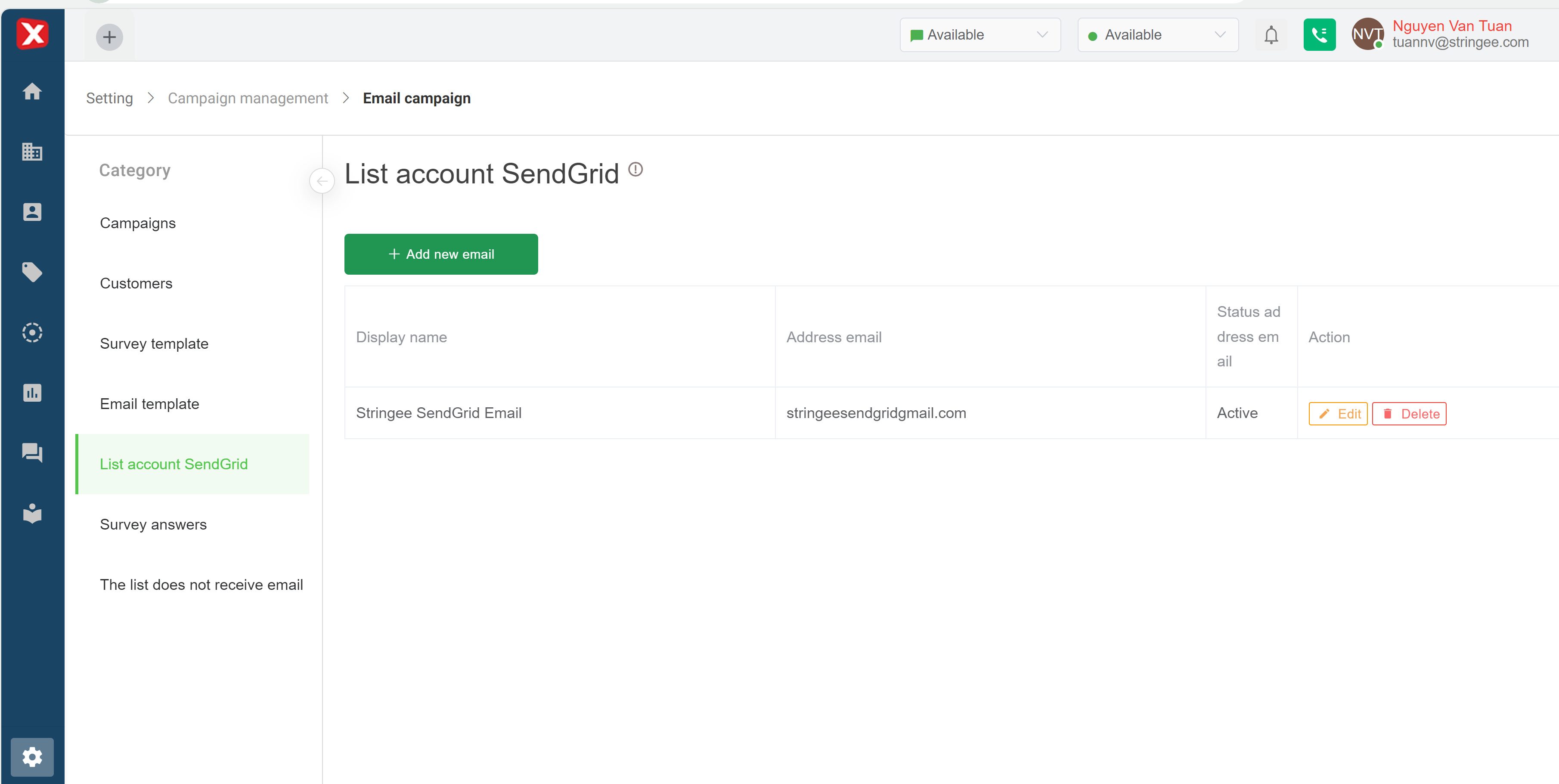
## Interface of Sengrid account list
* **Display name:** system display name
* **Sendgrid email address:** Sendgrid email address
* **Account status:**
* **Active:** email is in active state
* **Inactive:** email in inactive state
* **Action:**
* **Edit:** edit existing Sendgrid account
* **Delete:** delete Sendgrid account
## Add a new Sengrid email account
Email campaigns are sent from Sendgrid email or SMTP. With Sendgrid email, admin needs to add a Sendgrid account according to the following instructions:
* **Step 1:** Access the SendGrid Account Management screen, click the "Add New Account" button
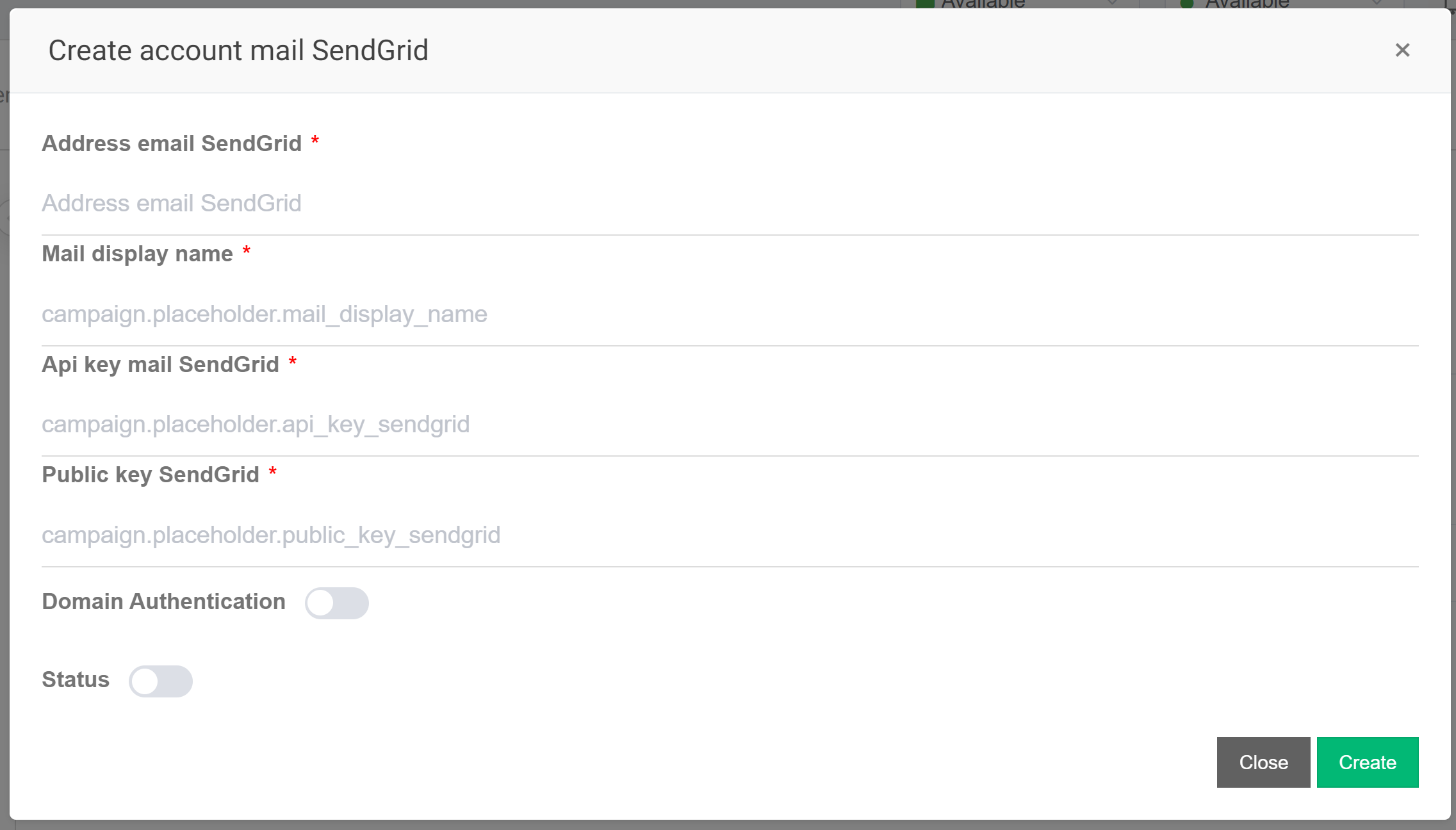
* **Step 2:** Enter all information in the Add SendGrid account screen and click “Create New”. The information to enter includes as shown:
* **SendGrid email address:** The email address registered with the Sendgrid account
* **Display name:** The name displayed on the SendGrid Account Management screen for easy lookup when needed
* **API key:** Admin enter the generated API key here. Create API key according to instructions at link ;
* **Public key:** Access your SendGrid account, select Signed Event Webhook Requests > Verification Key. Copy the “Verification Key” and paste it in the Public key field.
* **Domain authentication:** Leave as default
* **Status:** If enabled, the email status will be displayed: successfully sent, opened mail, .. (Only applicable to SendGrid). If off, show only successful or failed submission