> For the complete documentation index, see [llms.txt](https://help.stringeex.com/stringeex-tong-dai-cham-soc-and-quan-ly-khach-hang/llms.txt). Markdown versions of documentation pages are available by appending `.md` to page URLs; this page is available as [Markdown](https://help.stringeex.com/stringeex-tong-dai-cham-soc-and-quan-ly-khach-hang/en/iii.-mobile-app/android-app/6.-settings.md).
# 6. Settings
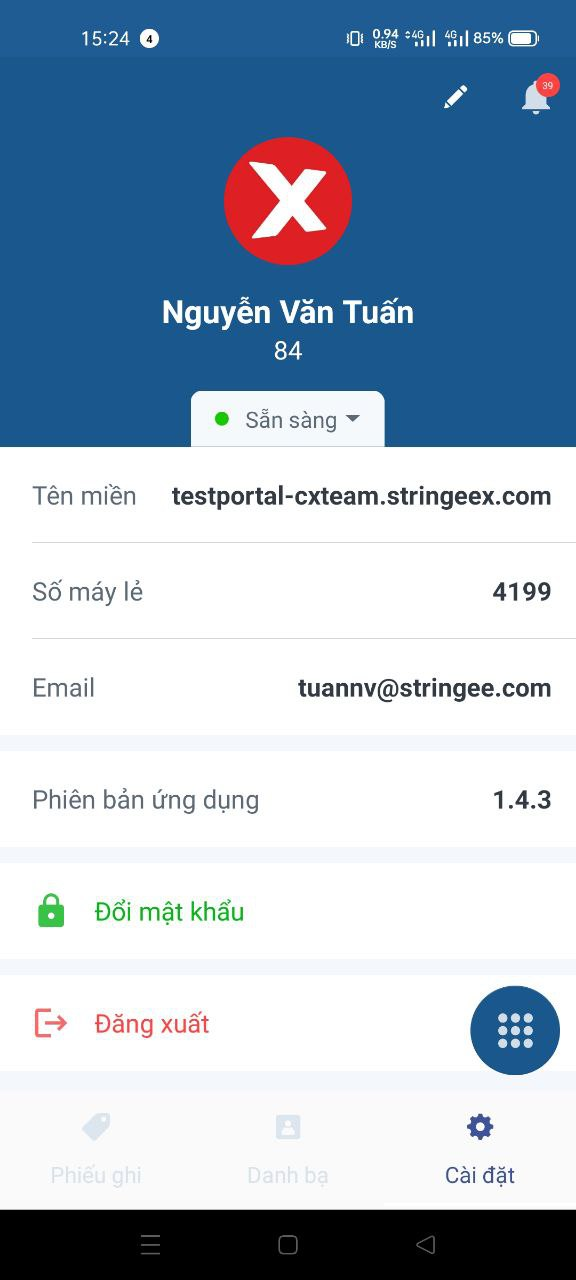
## Settings interface
**In this interface, there are:**
* **Domain**: is used to log in and manage business information
* **Extension:** the extension number was installed on the portal
* **Email:** email which the user uses to log in
* **App version:** current software application version
* **Change a password:** change an account login password
* **Log out:** log out of the current account you from the app
## **Change personal information**
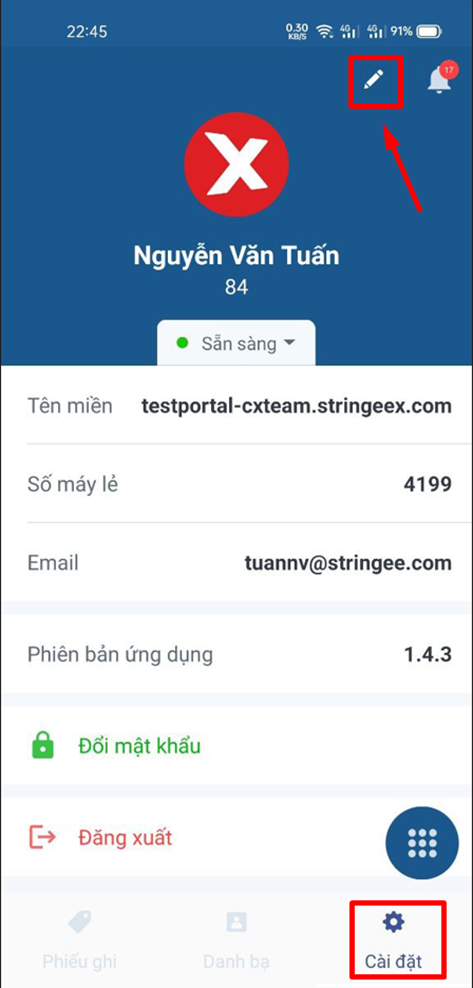
To change personal information, mobile users follow the following steps:
* **Step 1:** The user selects the Settings icon in the lower right corner of the interface
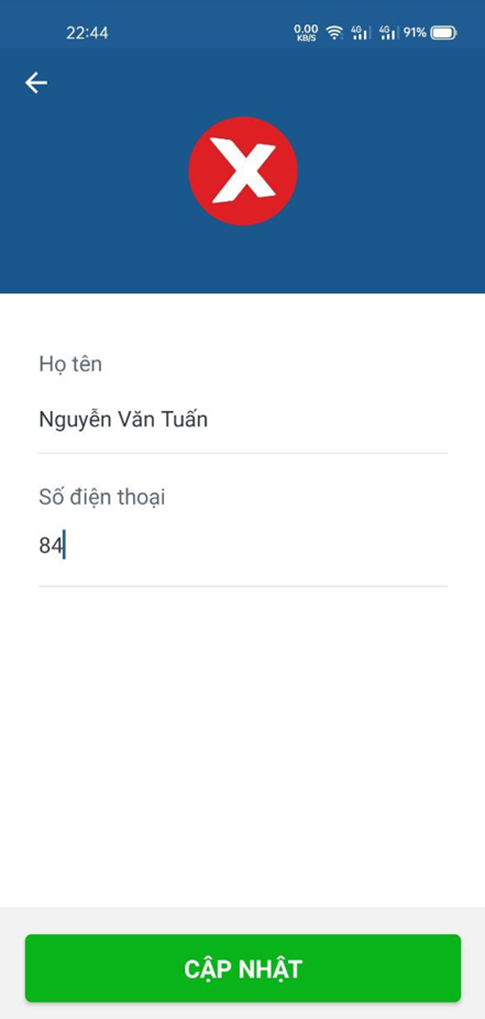
* **Step 2:** The user changes new information and clicks UPDATE to complete the process.
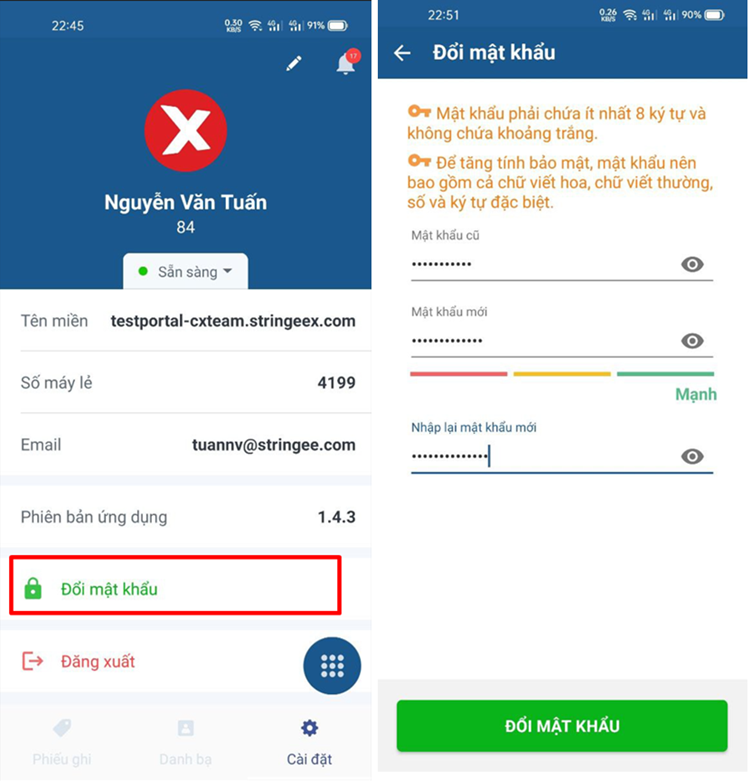
* **Step 3:** In the Change password section, the user enters the information and clicks the "Change password" to update. Note: When changing the portal login password, the logged in devices will automatically log out. Users need to re-login with the new password to use the app.