> For the complete documentation index, see [llms.txt](https://help.stringeex.com/stringeex-tong-dai-cham-soc-and-quan-ly-khach-hang/llms.txt). Markdown versions of documentation pages are available by appending `.md` to page URLs; this page is available as [Markdown](https://help.stringeex.com/stringeex-tong-dai-cham-soc-and-quan-ly-khach-hang/en/iv.-frequently-asked-questions/10.-manage-app-notifications.md).
# 10. Manage app notifications
## In-app notifications
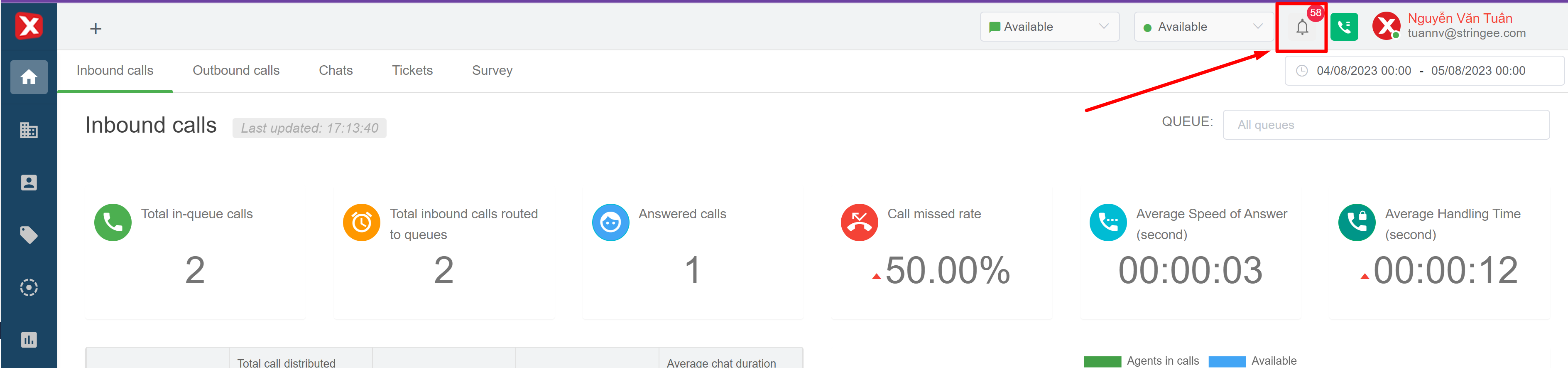
StringeeX designed a notification feature right on the software interface, making it easy for users to receive notifications related to their tickets and tasks. Users view and set notifications at the bell icon as shown below:
**The number shown in red is the number of unread notifications**
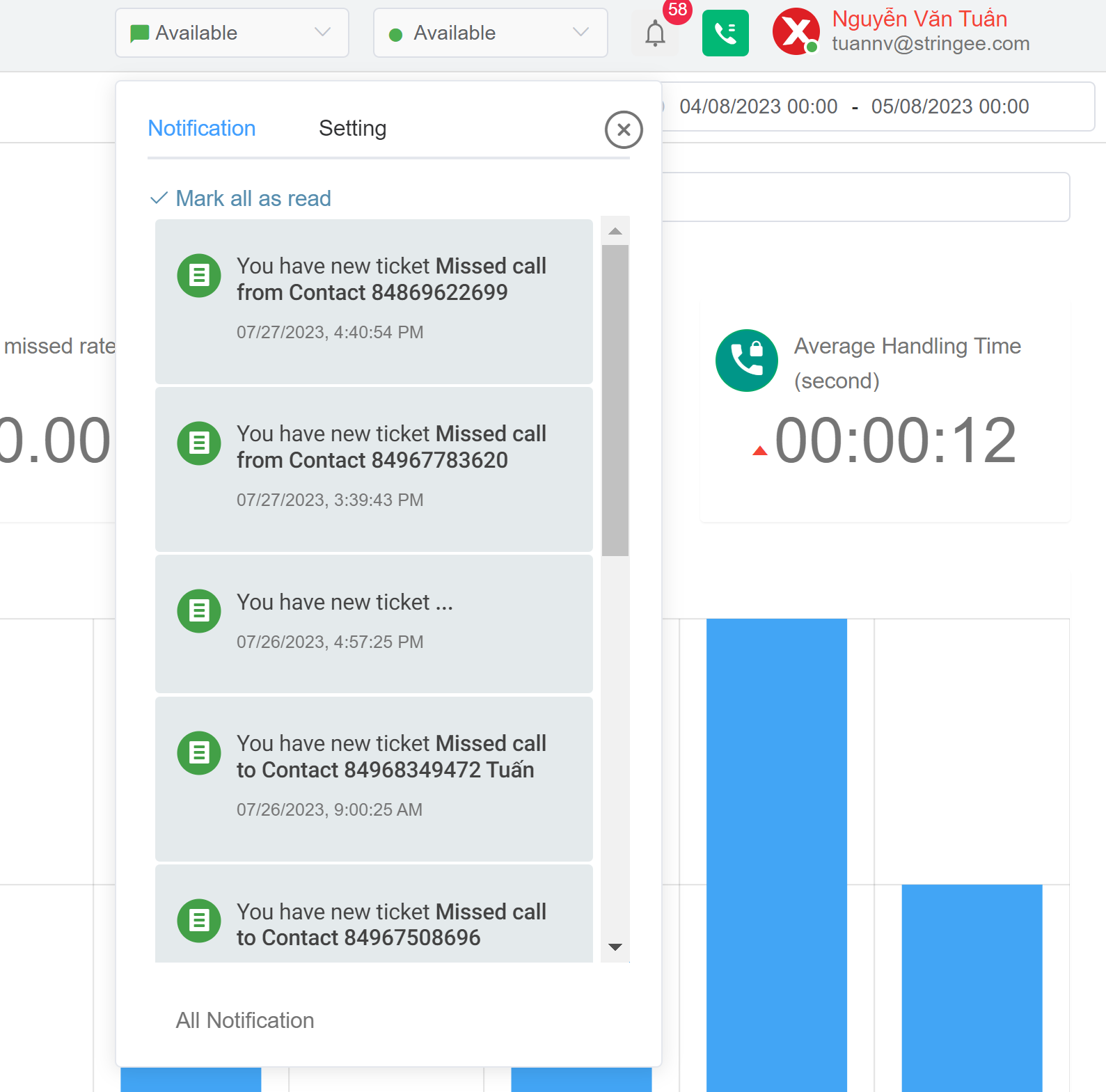
**The Notifications tab includes all notifications arranged in order of new to old. Unread messages are bolded.**
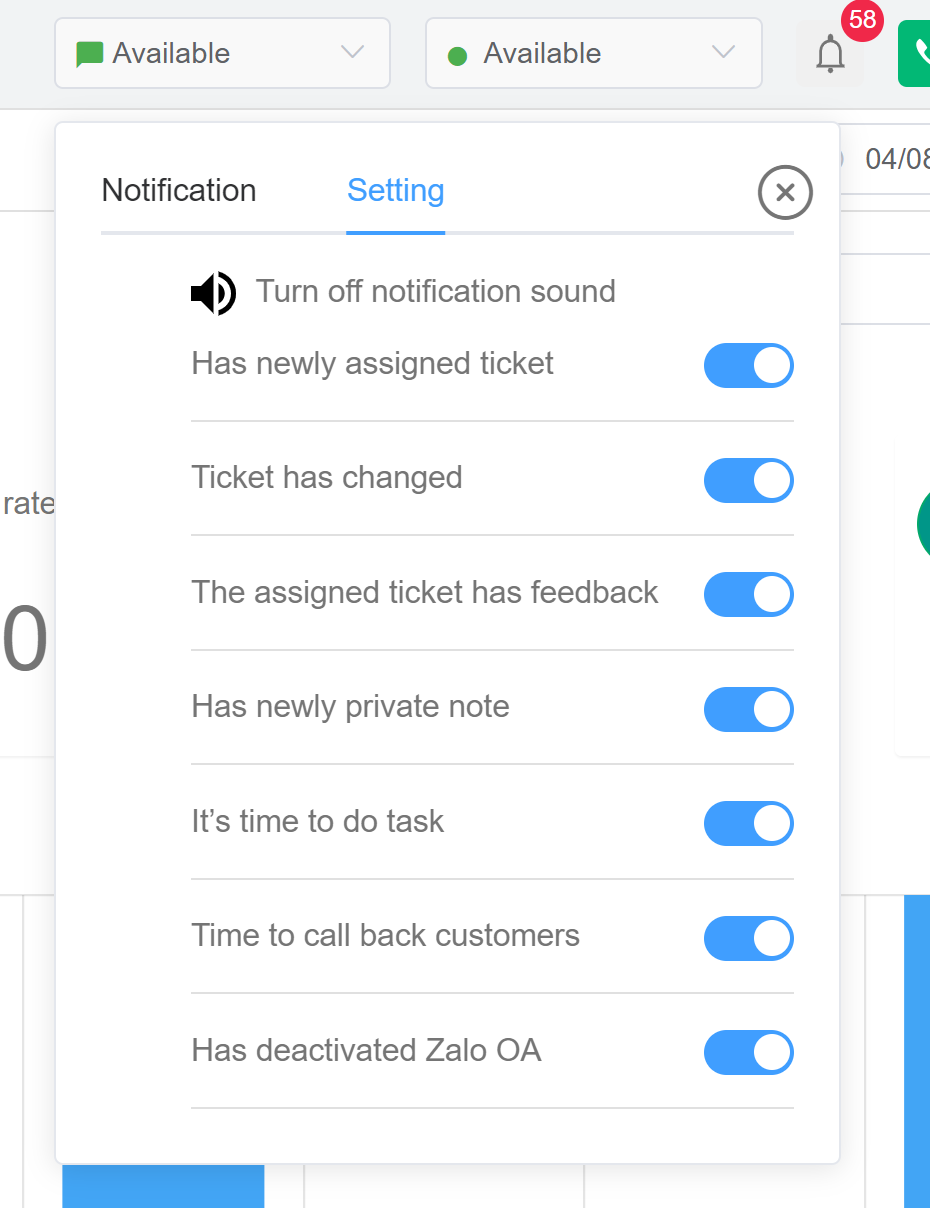
**The Settings tab allows users to set notifications on/off**
* Enable/Disable the notification sound by clicking on the speaker icon
* Enable/Disable notification when a new ticket is assigned to you
* Enable/Disable notification when the assigned ticket is changed
* Enable/Disable the notification when the ticket is given to the agent with new feedback to the customer
* Enable/Disable notification when an assigned ticket has new internal notes
* Enable/Disable notification when there is a task of the record or related to the time to do
**When the agent has a message, for example a new ticket has been assigned, the agent recognizes it by:**
* Listening to the notification sound (if the agent has the notification sound on, and is wearing headphones/opening the speakerphone).
* The message appears on the top at the **Notification** tab, which the agent can click to view details.
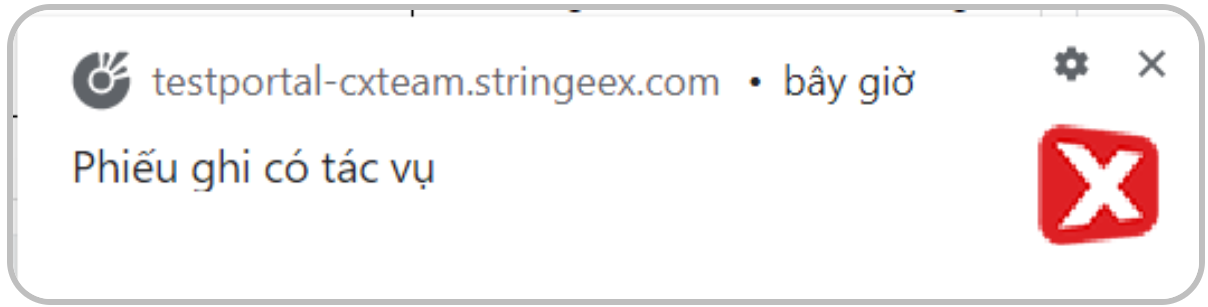
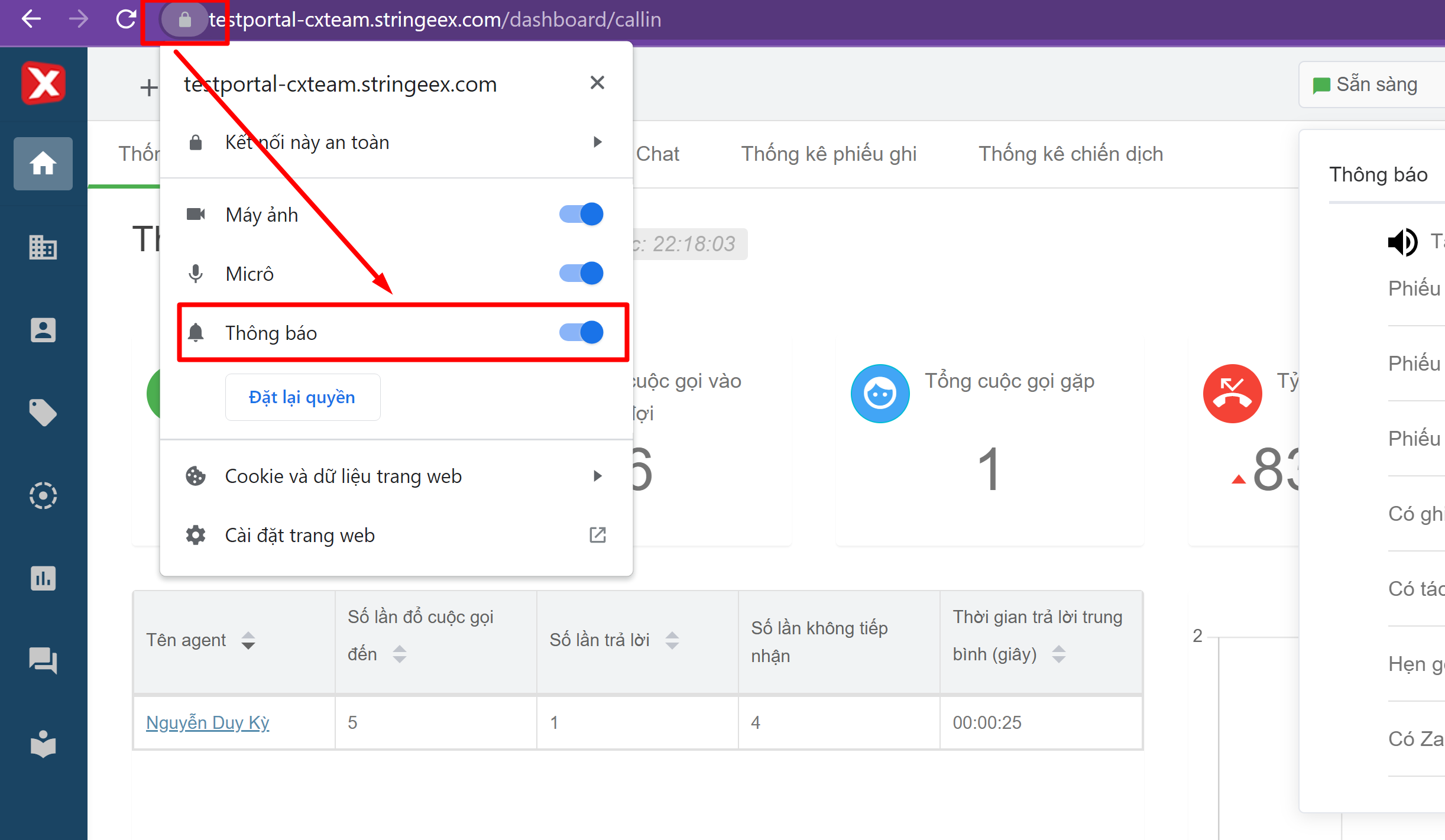
* A notification appears in the browser (web notification) if the agent allows the website to send notifications
## Browser notifications
To enable StringeeX notifications on the browser, users follow the image below
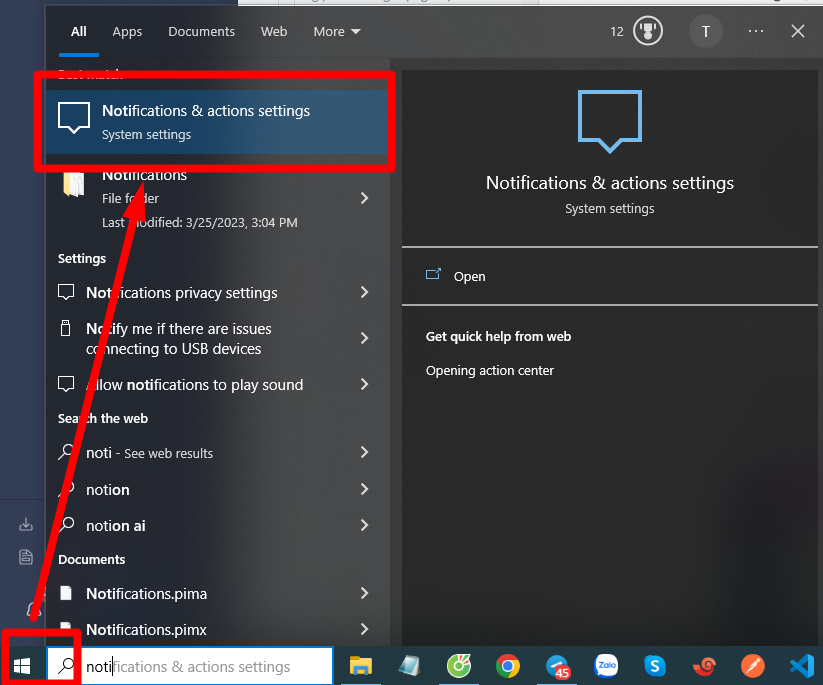
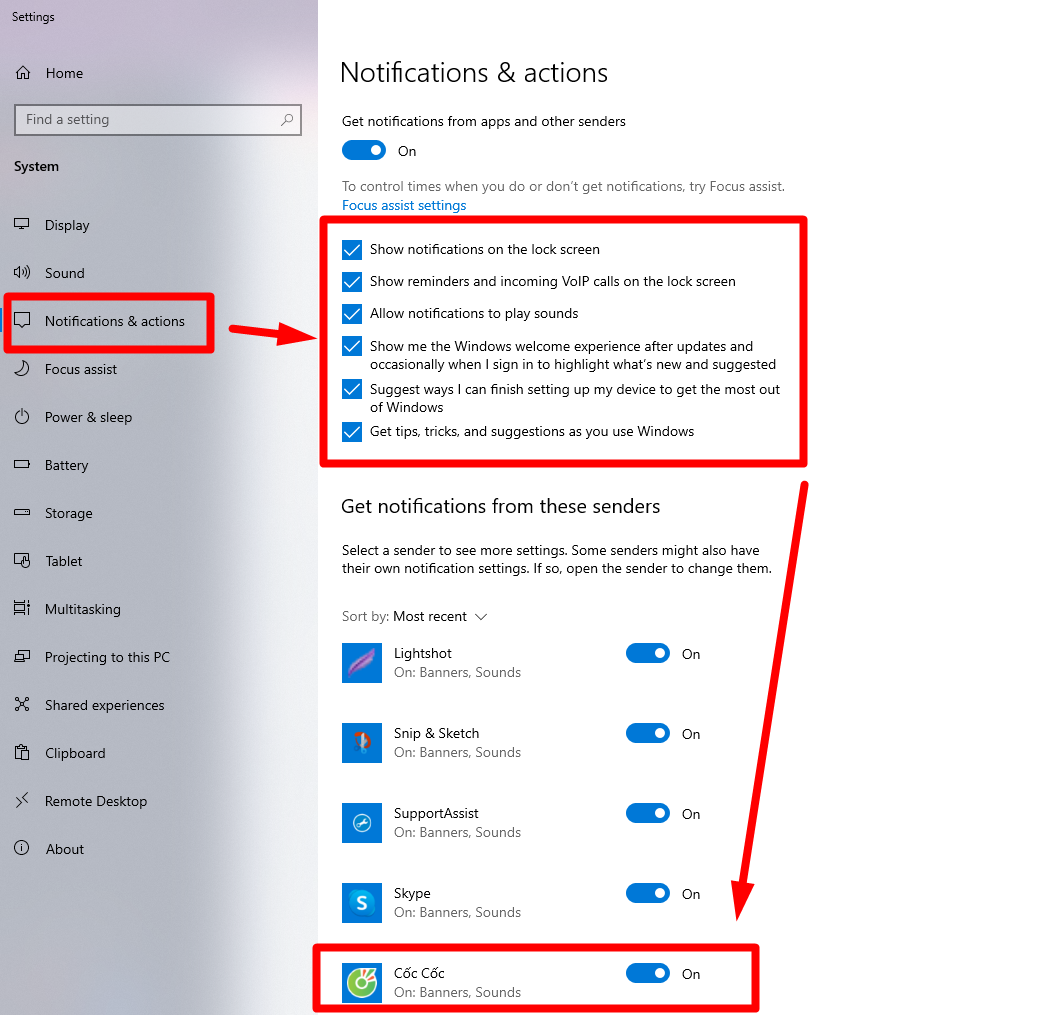
**Note**: In some cases, browser notifications are not displayed on the desktop (usually the lower right corner position). Users need to check the device's "Notification and Sound" settings and make sure that the browser used to access StringeeX is authorized to notify.