> For the complete documentation index, see [llms.txt](https://help.stringeex.com/stringeex-tong-dai-cham-soc-and-quan-ly-khach-hang/llms.txt). Markdown versions of documentation pages are available by appending `.md` to page URLs; this page is available as [Markdown](https://help.stringeex.com/stringeex-tong-dai-cham-soc-and-quan-ly-khach-hang/en/ii.-system-features/9.-settings/9.6-other-configurations/9.6.4-portal-configuration/login-method.md).
# Login Method
Customize and manage login methods for the portal, providing flexibility in securing your account.
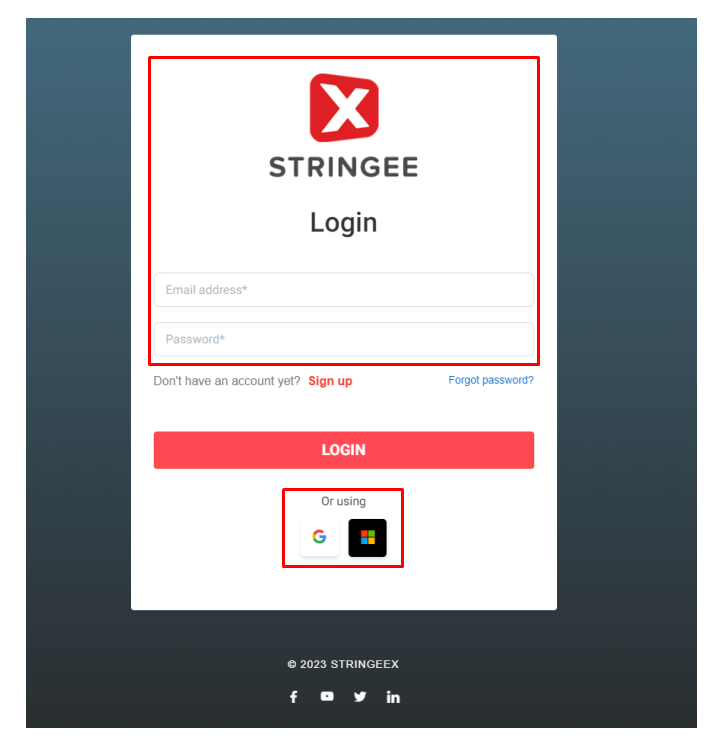
The login screen on the StringeeX portal currently has three login methods:
The Manage Login Methods feature is specifically for users with portal configuration rights on StringeeX to optionally select login methods for the portal.
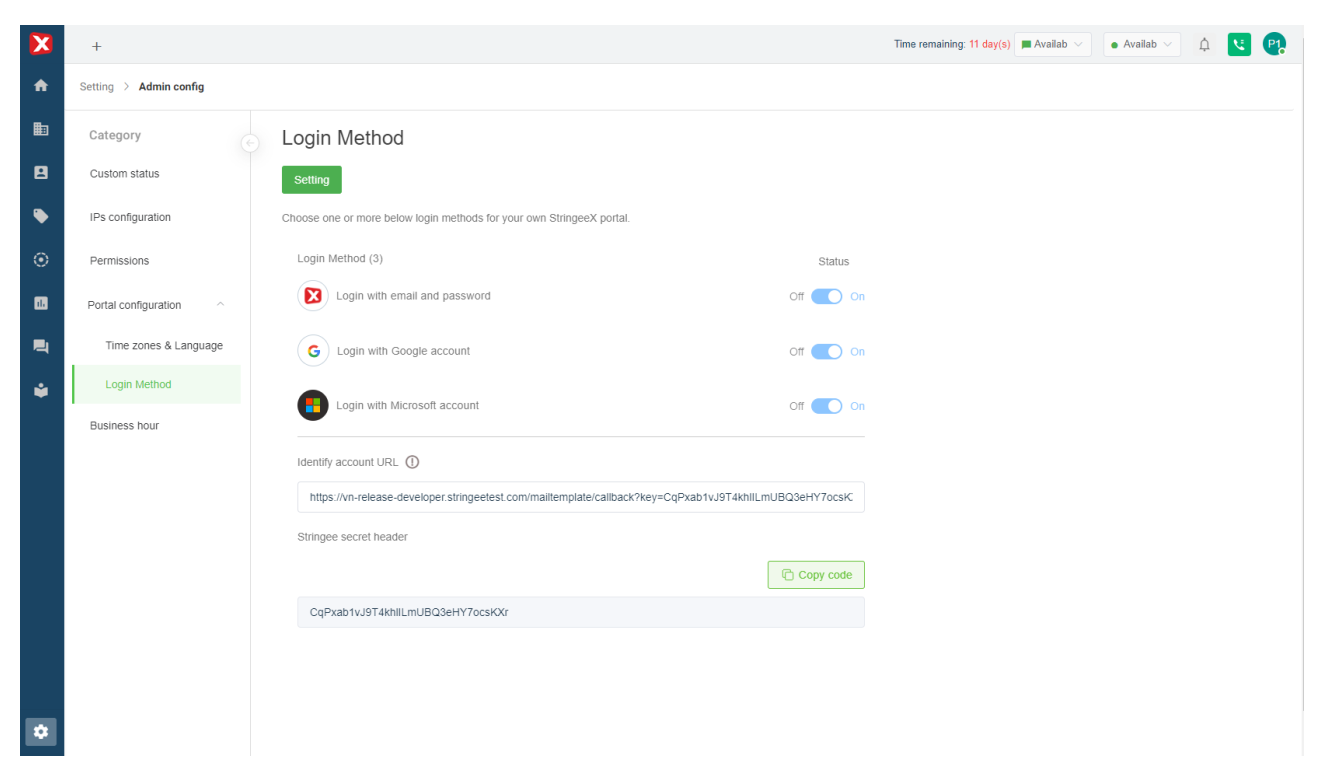
## Access the Portal Configuration Screen and Select the Login Methods Tab
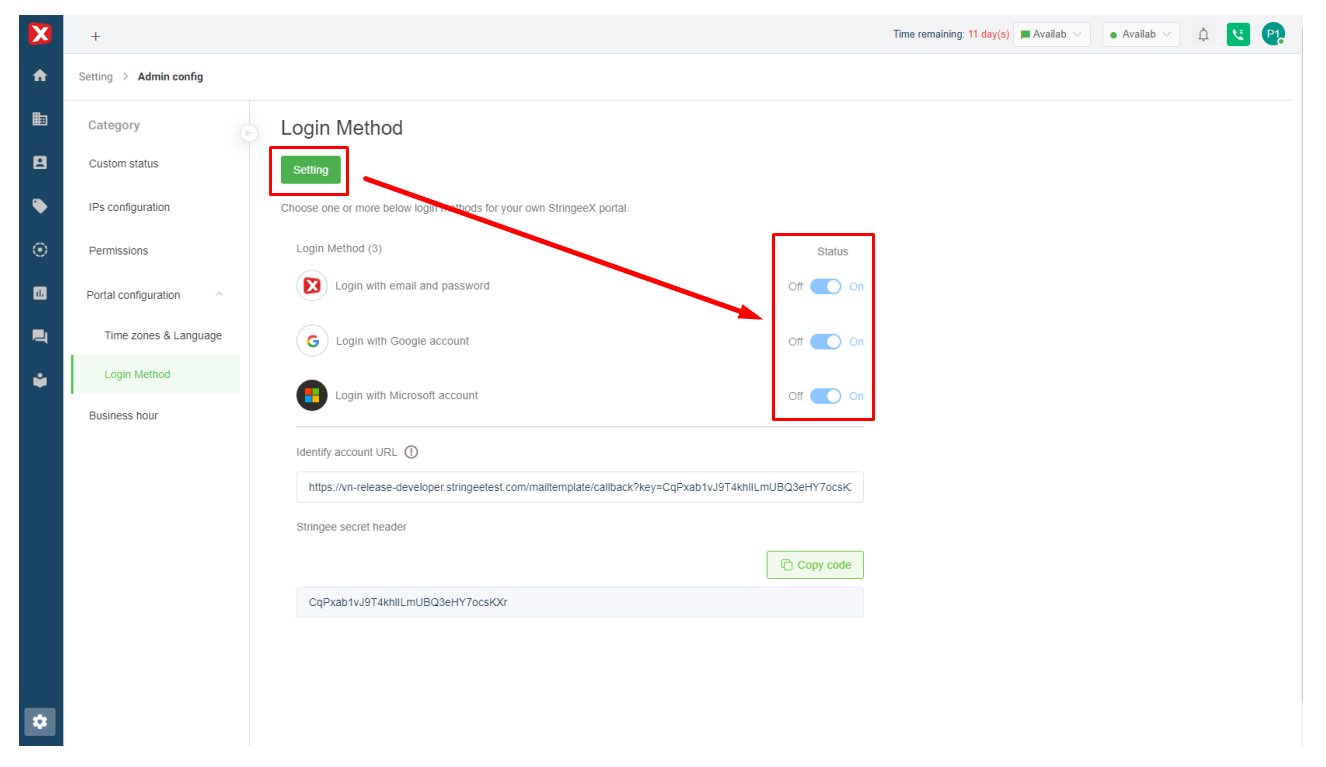
Click the Setting Button
After completing, the system allows enabling/disabling login methods for the portal.
## Set Up URL
* Users enter the URL for authentication and then the system generates the Secret header.
* Users can copy it.
**Note:** *Enabling any method will display that method in the portal, allowing users to log in.*
* If URL authentication is configured: When the user successfully logs in, the system will call the configured URL with the POST method and form-data containing the following information:
* **id:** Google/Microsoft ID.
* **email:** Google/Microsoft email.
* **time:** current time.
* **Key**
* Your system will then compute and return the approval result for the user logging into the portal. Based on this result, StringeeX will allow or deny user login.
* Stringee secret header: Used to verify whether the login information is sent from your portal or not. (You can click the Refresh icon to generate a new code.)