> For the complete documentation index, see [llms.txt](https://help.stringeex.com/stringeex-tong-dai-cham-soc-and-quan-ly-khach-hang/llms.txt). Markdown versions of documentation pages are available by appending `.md` to page URLs; this page is available as [Markdown](https://help.stringeex.com/stringeex-tong-dai-cham-soc-and-quan-ly-khach-hang/en/iii.-mobile-app/android-app/1.-log-in.md).
# 1. Log in
## Note
Supported Android version: 5.0.0
## Login steps
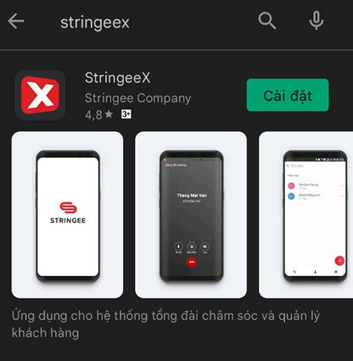
* **Step 1:** Download APP. The user enters CHPLAY on device, searches for “StringeeX”:
* **Step 2:** The user downloads and installs the app on the device
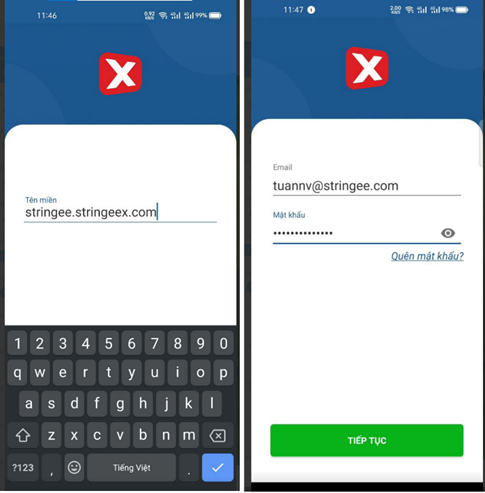
* **Step 3:** Log in. After downloading and installing the software successfully, users proceed to log in the following orders:
* **Domain:** The user enters the login domain information. For example, on an Admin computer managed by a portal with the path: , users will enter here information: “stringee.stringeex.com” (Note: Remove spaces at the end, do not enter “https”)
* **Email:** Enter the email into the system
* **Password:** Enter login password
* **Step 4:** After completing the login, the user will enter the StringeeX app interface. Users click on the corresponding tabs of contact, ticket, and settings to manipulate