> For the complete documentation index, see [llms.txt](https://help.stringeex.com/stringeex-tong-dai-cham-soc-and-quan-ly-khach-hang/llms.txt). Markdown versions of documentation pages are available by appending `.md` to page URLs; this page is available as [Markdown](https://help.stringeex.com/stringeex-tong-dai-cham-soc-and-quan-ly-khach-hang/en/i.-introduction/4.-making-outbound-calls.md).
# 4. Making outbound calls
## Making outbound calls on Softphone
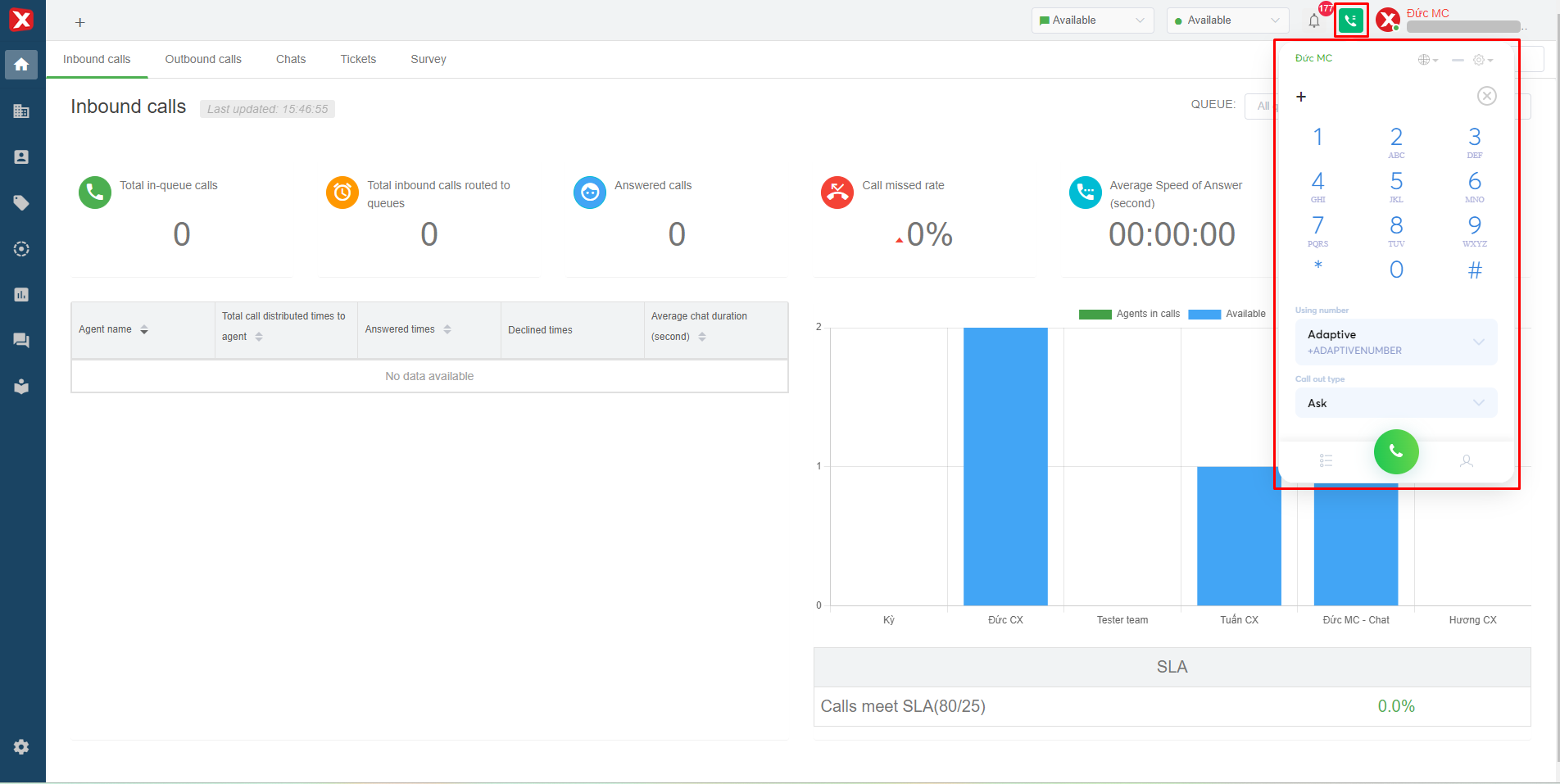
Users press the call icon on the interface to open the softphone.
Image 1: Softphone
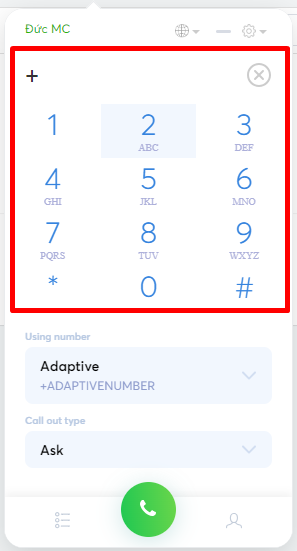
* **Step 1:** Enter the phone number to call
Users can enter phone numbers using the softphone's numeric keypad or the physical keyboard.
Image 2: Enter phone numbers
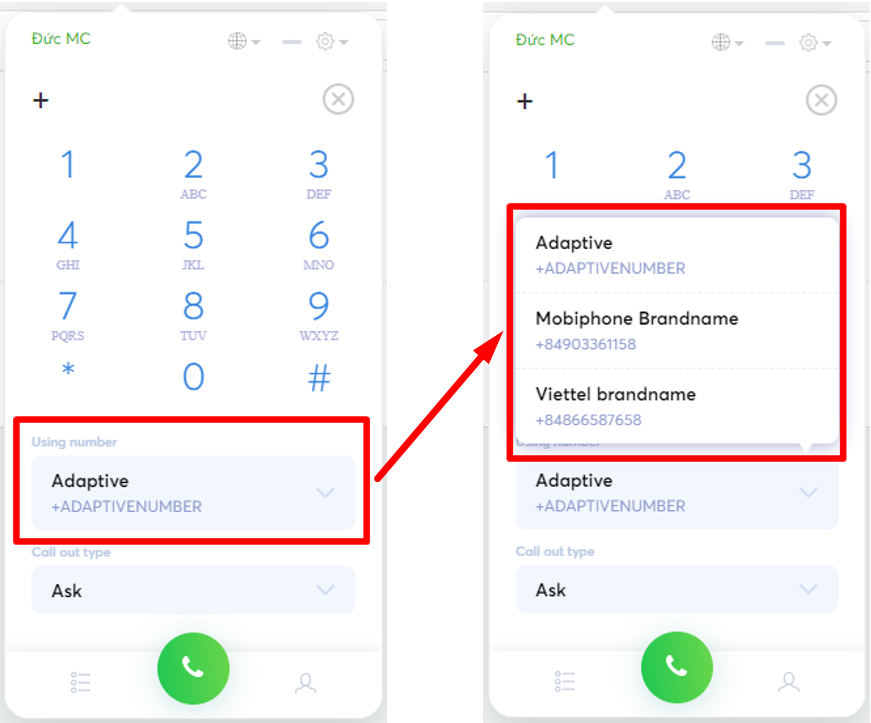
* **Step 2:** Select the hotline number to make outbound calls
**Types of hotline numbers**: Carrier hotline number, Adaptivenumber (if user creates).
**-** [**Carrier hotline number**](/stringeex-tong-dai-cham-soc-and-quan-ly-khach-hang/en/ii.-system-features/9.-settings/9.1-service-management-customer-service/9.1.4-configure-receiving-channels/channels/hotline-numbers.md) is the number of telecommunication provide such as Viettel, Vina, Mobi, Gtel, iTel, etc.
**-** [**Adaptivenumber**](/stringeex-tong-dai-cham-soc-and-quan-ly-khach-hang/en/ii.-system-features/9.-settings/9.1-service-management-customer-service/9.1.4-configure-receiving-channels/channels/hotline-numbers.md#so-hotline-tu-dong-nhan-noi-mang) the system automatically selects the hotline number of the same mobile network as the dialed phone number.
Image 3: Select a hotline number
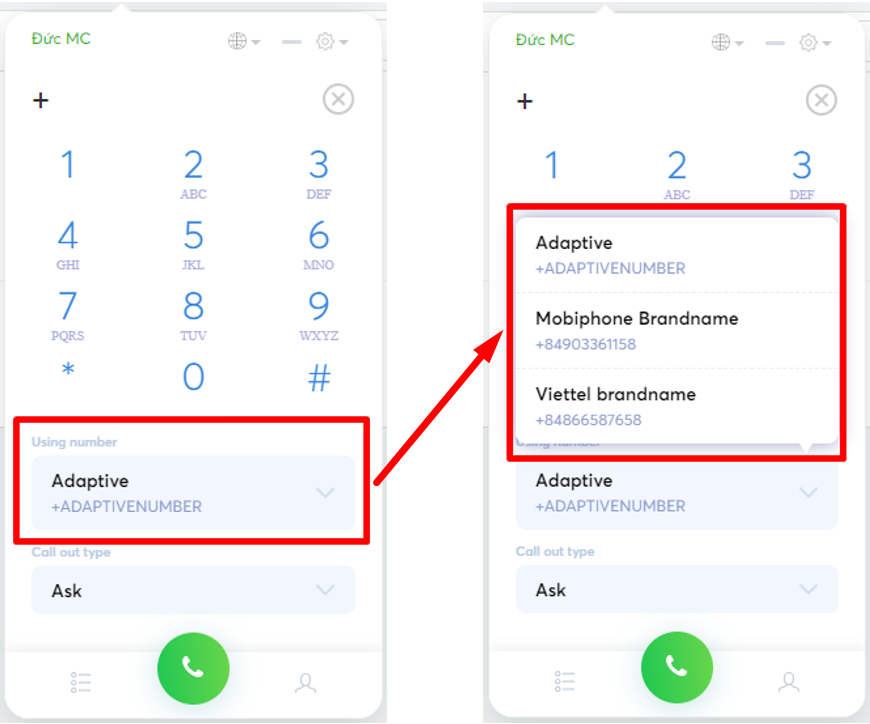
* **Step 3:** Select the call-out type
**- Phone call:** A telecommunication mobile call between a carrier and a carrier or a GSM call.
**- Voice call via internet:** Internal voice calls between users on the Stringee system. In this case, the user will enter the phone number which is the extension of the user to call.
**- Video call via internet:** An internal video call between users on the Stringee system. In this case, the user will enter the phone number which is the extension of the user to call.
**NOTE:** *If you choose the type of call as **Voice call via internet** and **Video call via internet**, it will NOT be possible to make CALLS to the Customer's phone number.*
Image 4: Select a call type
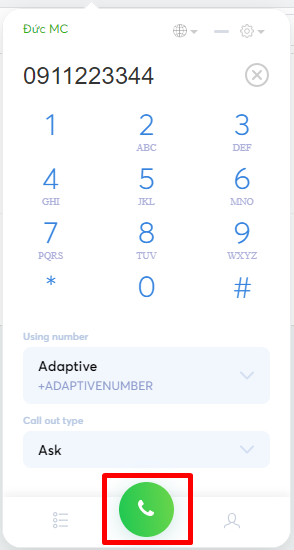
* **Step 4:** Make a call
After completing the above 3 steps, the person presses the "call" button to make a call.
Image 5: A call button
## Make a call in a ticket
[Click here](https://help.stringeex.com/stringeex-tong-dai-cham-soc-and-quan-ly-khach-hang/en/i.-introduction/pages/QBUf9LvTGEUtyLzvqZNx#ghi-chu-phieu-ghi.) (in the section of "Call out for customer from a ticket")
## Make a call in a contact
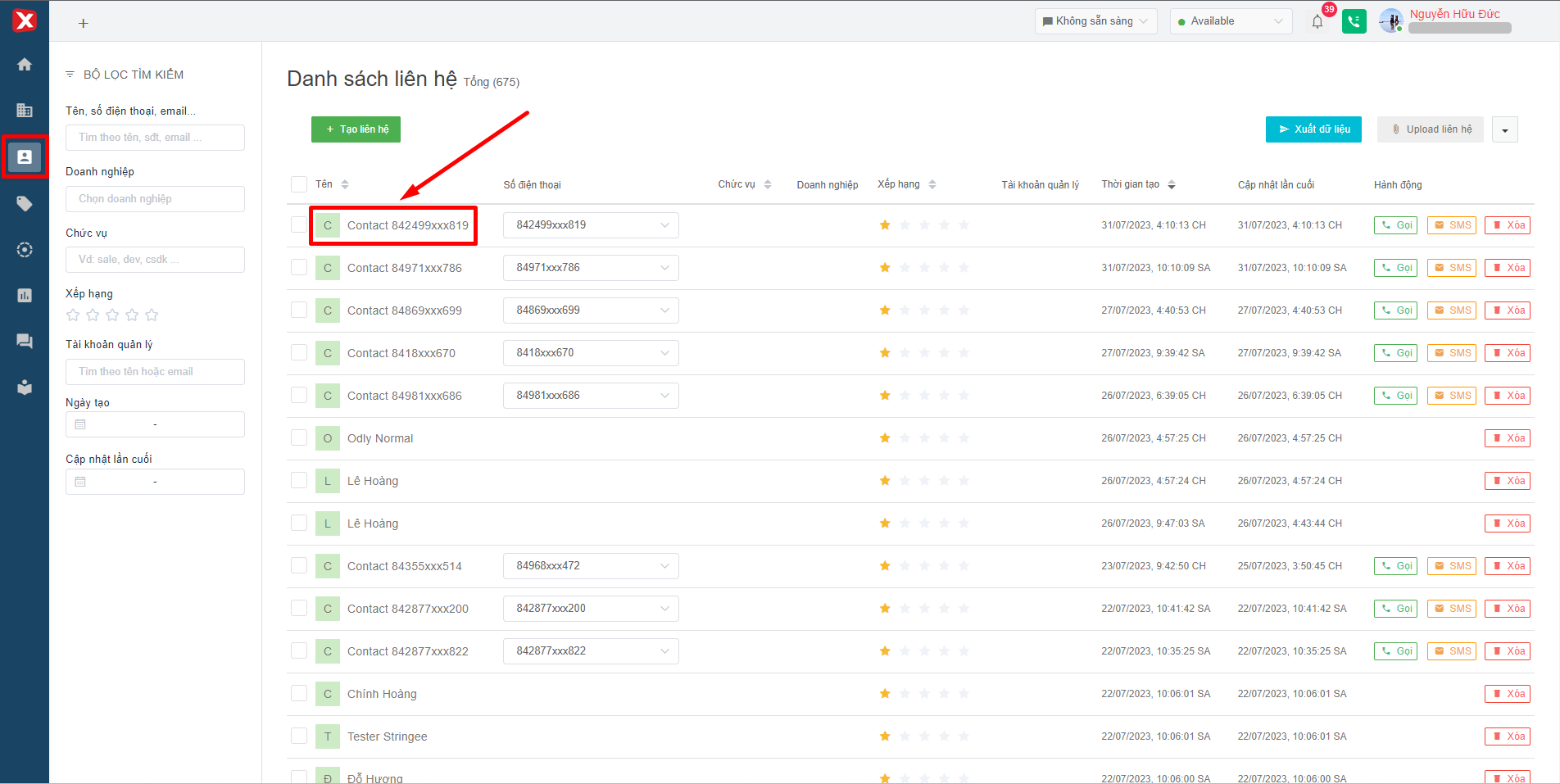
* **Step 1:** Select the contact to call
Image 6: Select a contact
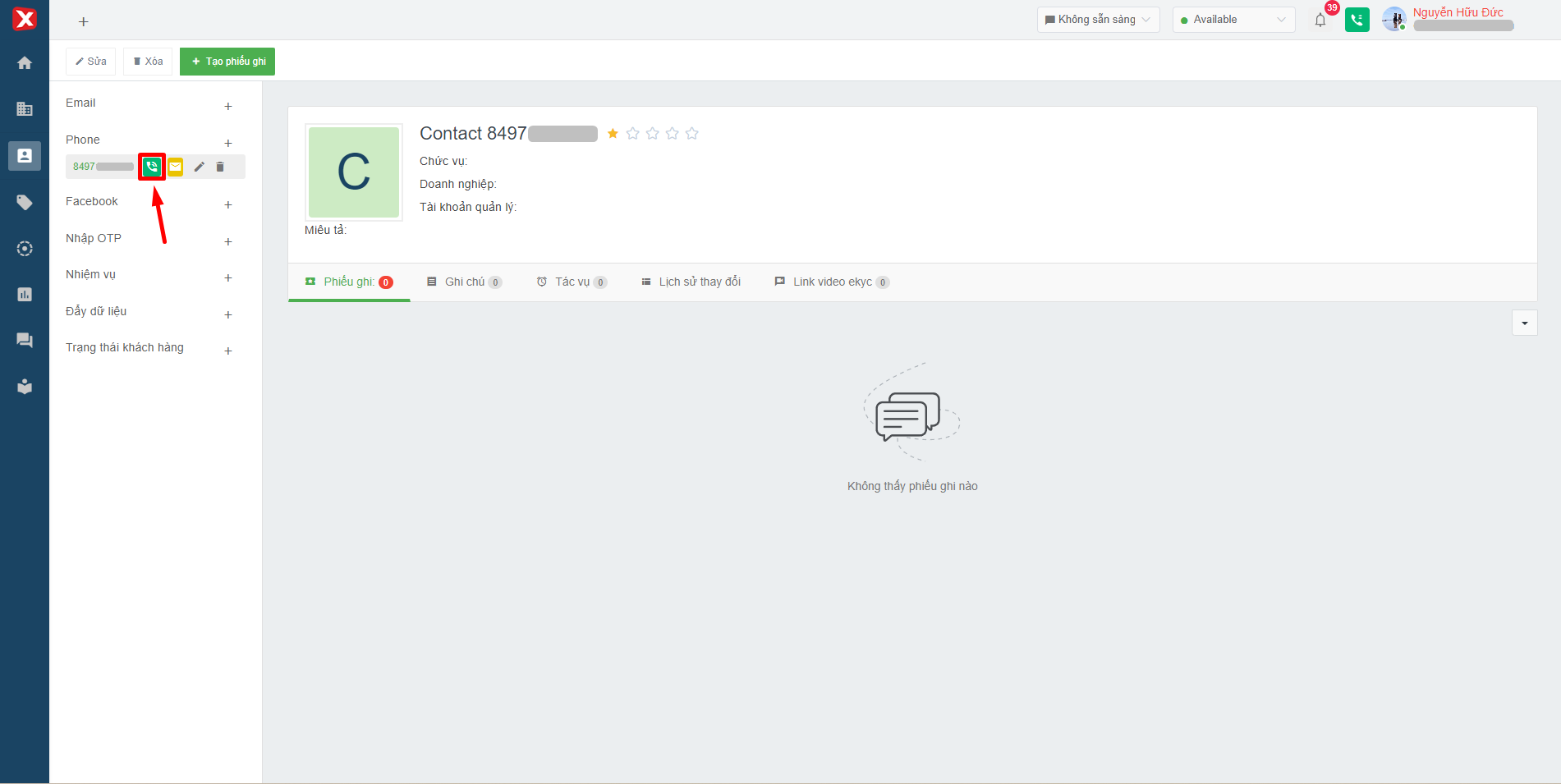
* **Step 2:** Make a call
The user hovers the mouse pointer on the phone number in the "Phone" section to display options, then selects the "call" icon to make a call to the customer.
This will be counted as a call out.