> For the complete documentation index, see [llms.txt](https://help.stringeex.com/stringeex-tong-dai-cham-soc-and-quan-ly-khach-hang/llms.txt). Markdown versions of documentation pages are available by appending `.md` to page URLs; this page is available as [Markdown](https://help.stringeex.com/stringeex-tong-dai-cham-soc-and-quan-ly-khach-hang/en/ii.-system-features/9.-settings/9.7-campaign-management/9.7.1-outbound-call-campaign/survey-template.md).
# Survey template
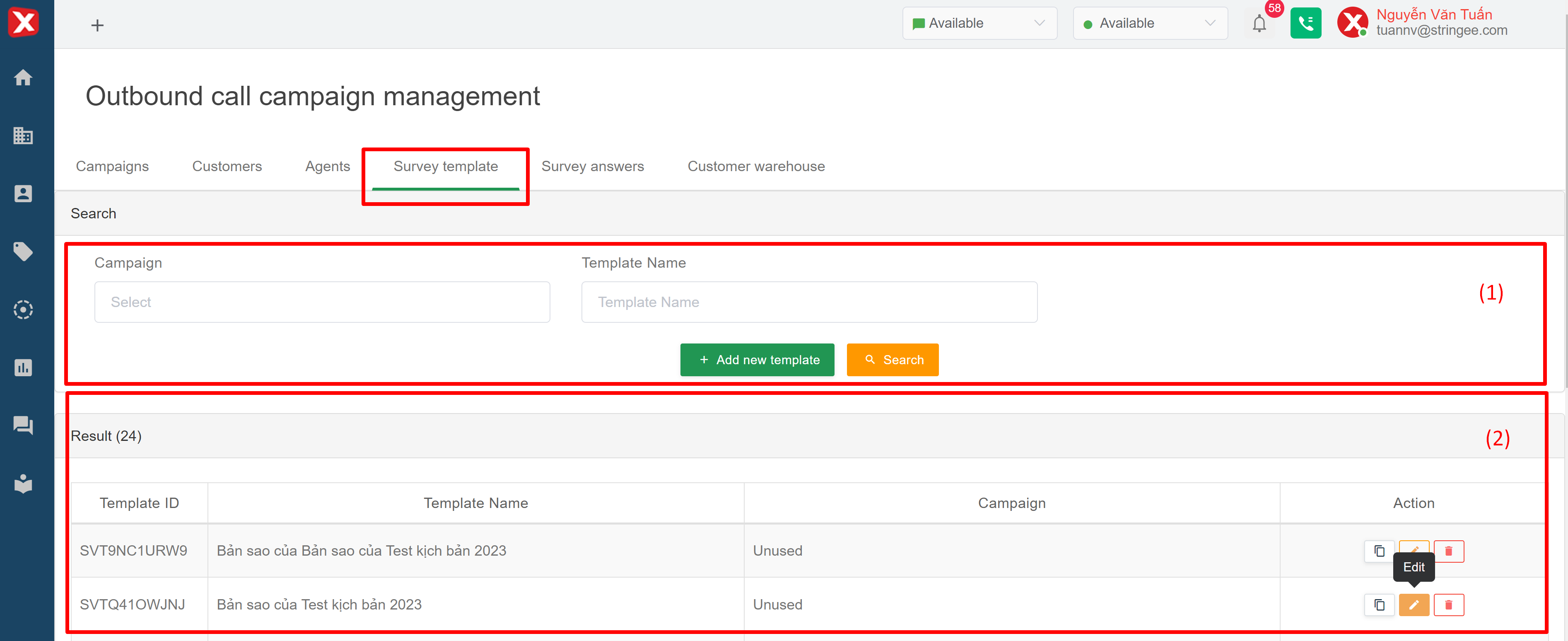
## Interface of survey template list
### (1) Information filter
* **Campaign name:** find the script by the name of the current campaign
* **Template name:** search by script name
### (2) Filter information
* **Template name:** the script name set when creating the campaign
* **Action:**
* **Copy:** create a new template that is identical to the corresponding template
* **Edit:** edit survey questionnaire, template name
* **Delete:** delete the template
## Create a new template
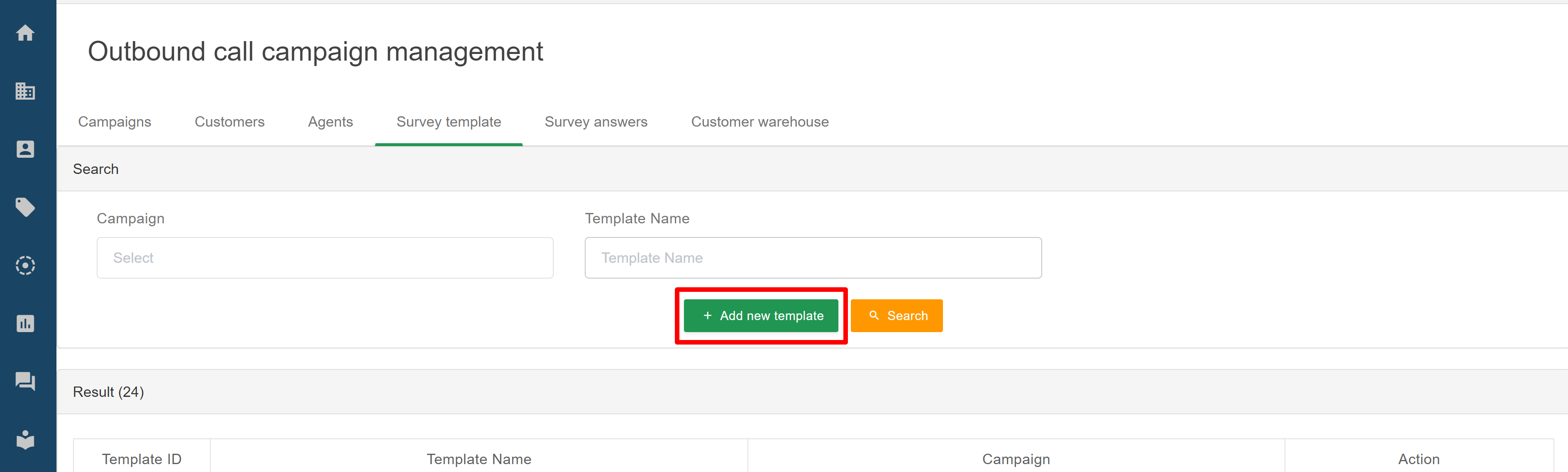
* **Step 1:** In the screen of the survey template list, the admin clicks the "Create" button to create a new survey template:
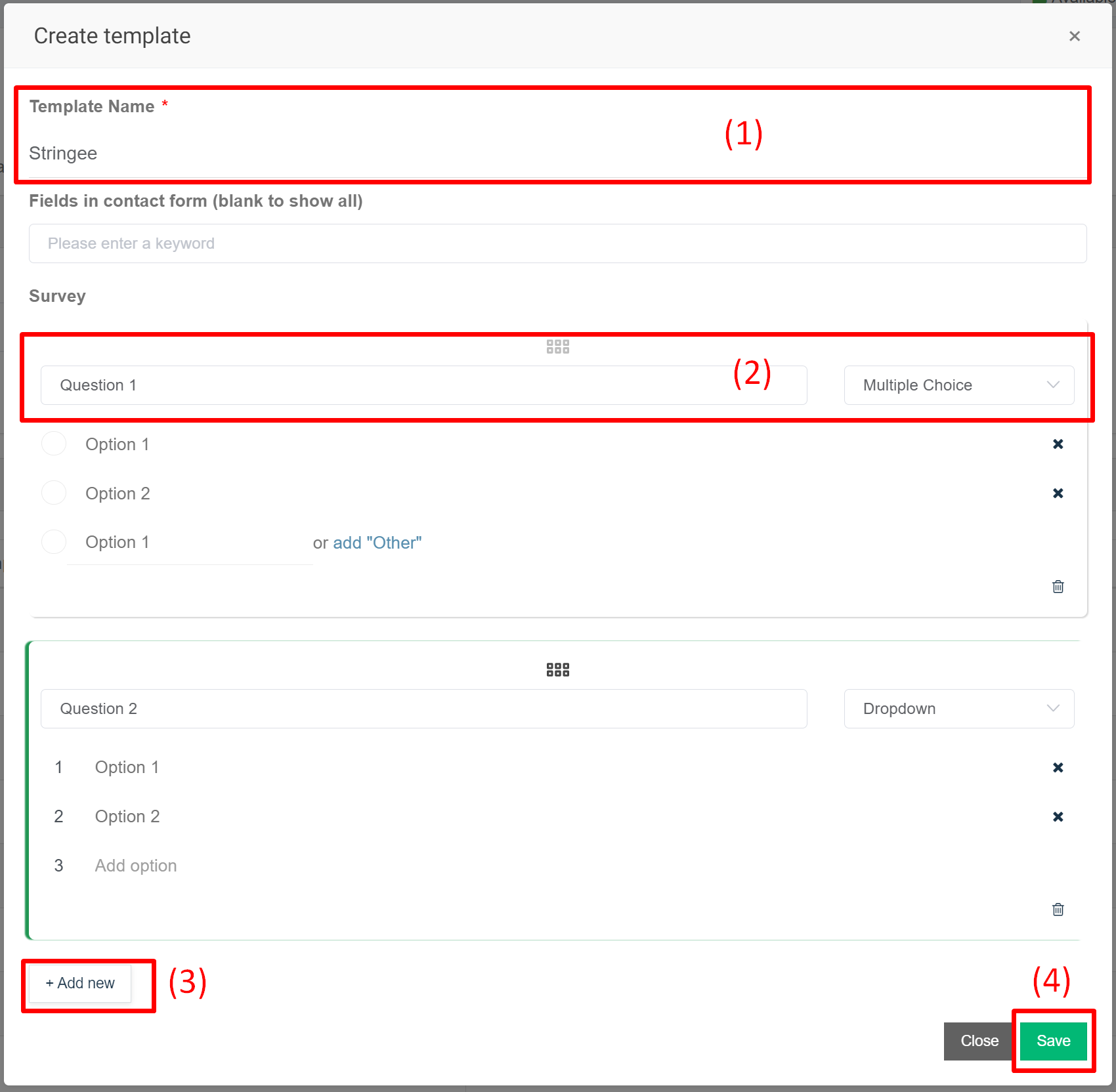
* **Step 2:** At the template creation screen, the admin enters the script name and clicks the "Create new" button. After that, the admin continues to enter the desired questions and answers and then click Save
* **(1)** Name of this template
* **(2)** Question Name and question type
* **(3)** Add new question
* **(4)** Save this template
***Note:** going back to the template list screen, admin can copy, edit, delete the created template*