> For the complete documentation index, see [llms.txt](https://help.stringeex.com/stringeex-tong-dai-cham-soc-and-quan-ly-khach-hang/llms.txt). Markdown versions of documentation pages are available by appending `.md` to page URLs; this page is available as [Markdown](https://help.stringeex.com/stringeex-tong-dai-cham-soc-and-quan-ly-khach-hang/en/iv.-frequently-asked-questions/1.-forget-a-password.md).

# 1. Forget a password

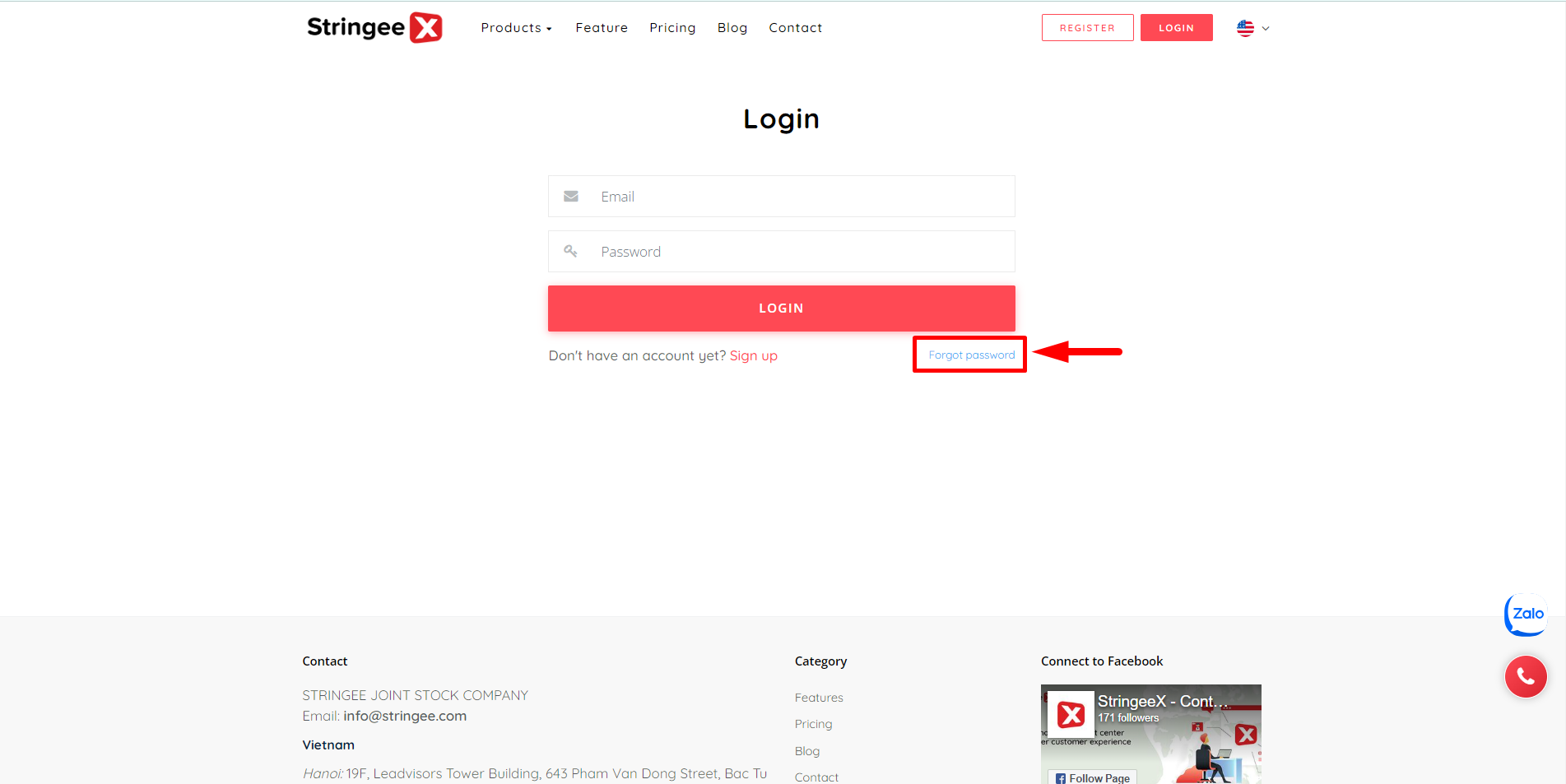
**Step 1:** Select the "Forgot password" option on the login interface.

<figure><img src="/files/CVhruzk22glbQUFfDOps" alt=""><figcaption><p>Image 1: Select "Forgot password"</p></figcaption></figure>

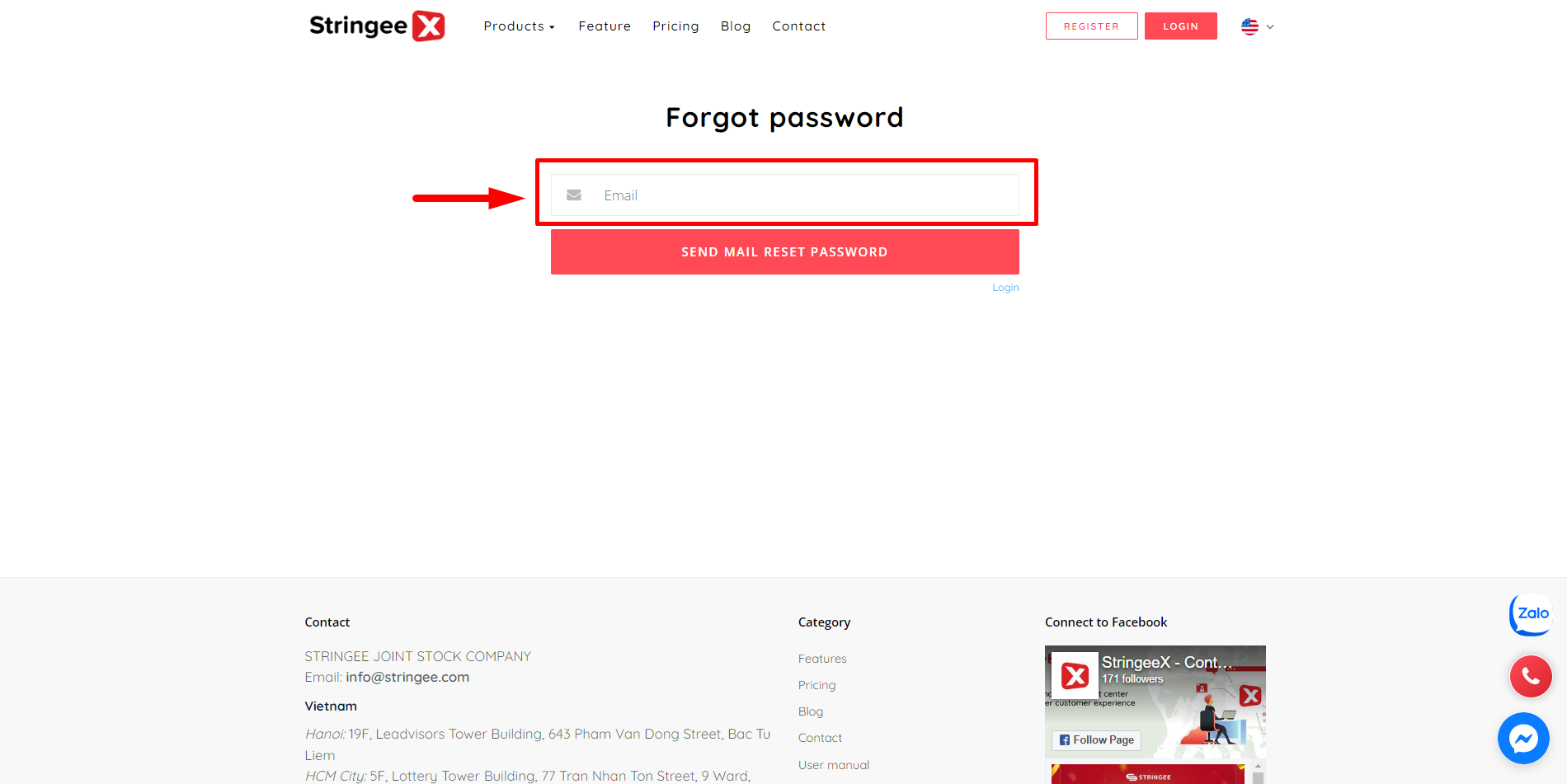
**Step 2:** Enter the email you used to register for an account on Stringee and click "Send mail reset password".

<figure><img src="/files/fqu3HBPFccXilFKgdmts" alt=""><figcaption><p>Image 2: Enter email address</p></figcaption></figure>

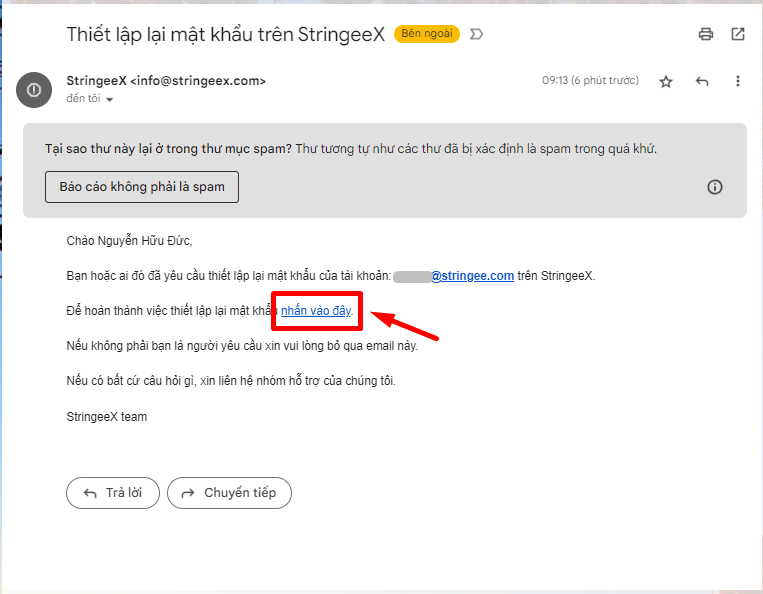
**Step 3:** Check your email to receive the password change link sent from Stringee.

Click on the phrase "click here".

<figure><img src="/files/ZlSYfDqPtAbHsjf6N46v" alt=""><figcaption><p>Image 3: Get a link to change your password</p></figcaption></figure>

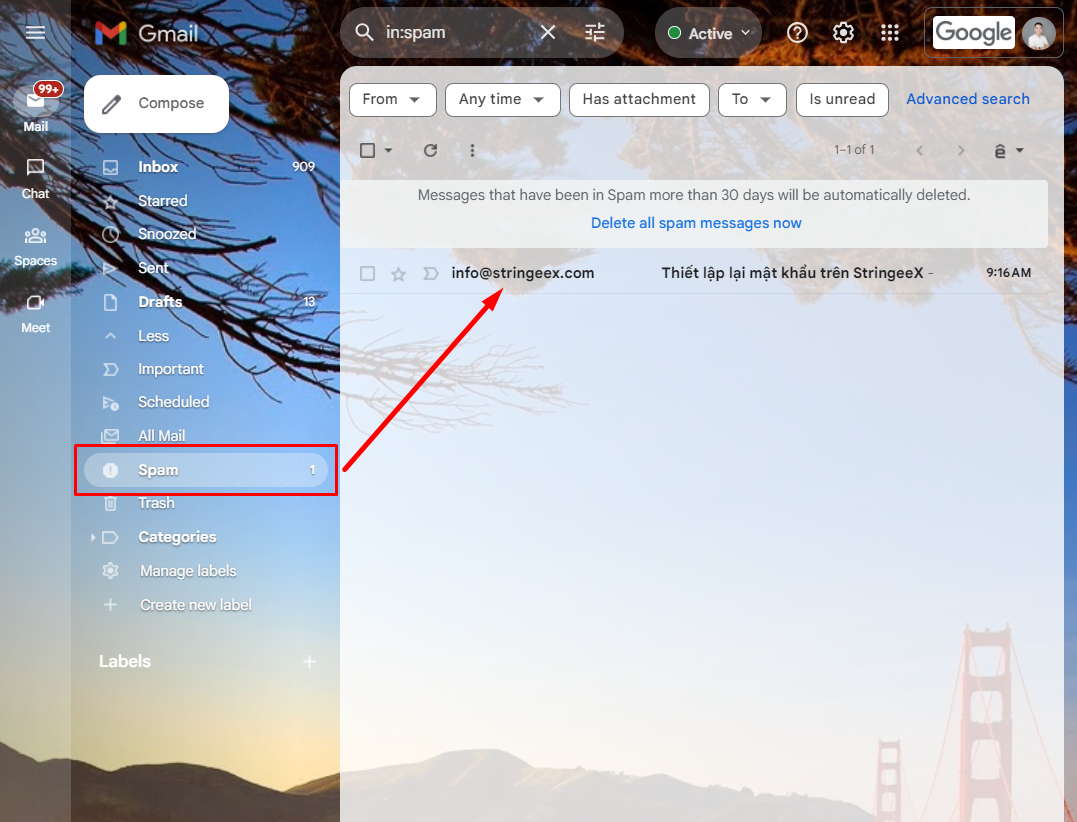
**Note:** *If there is no email sent to the "Inbox", please check the Spam mailbox.*

<figure><img src="/files/os13uTsikRtZ5yRnpEuo" alt=""><figcaption><p>Image 4: Check spam mailbox</p></figcaption></figure>

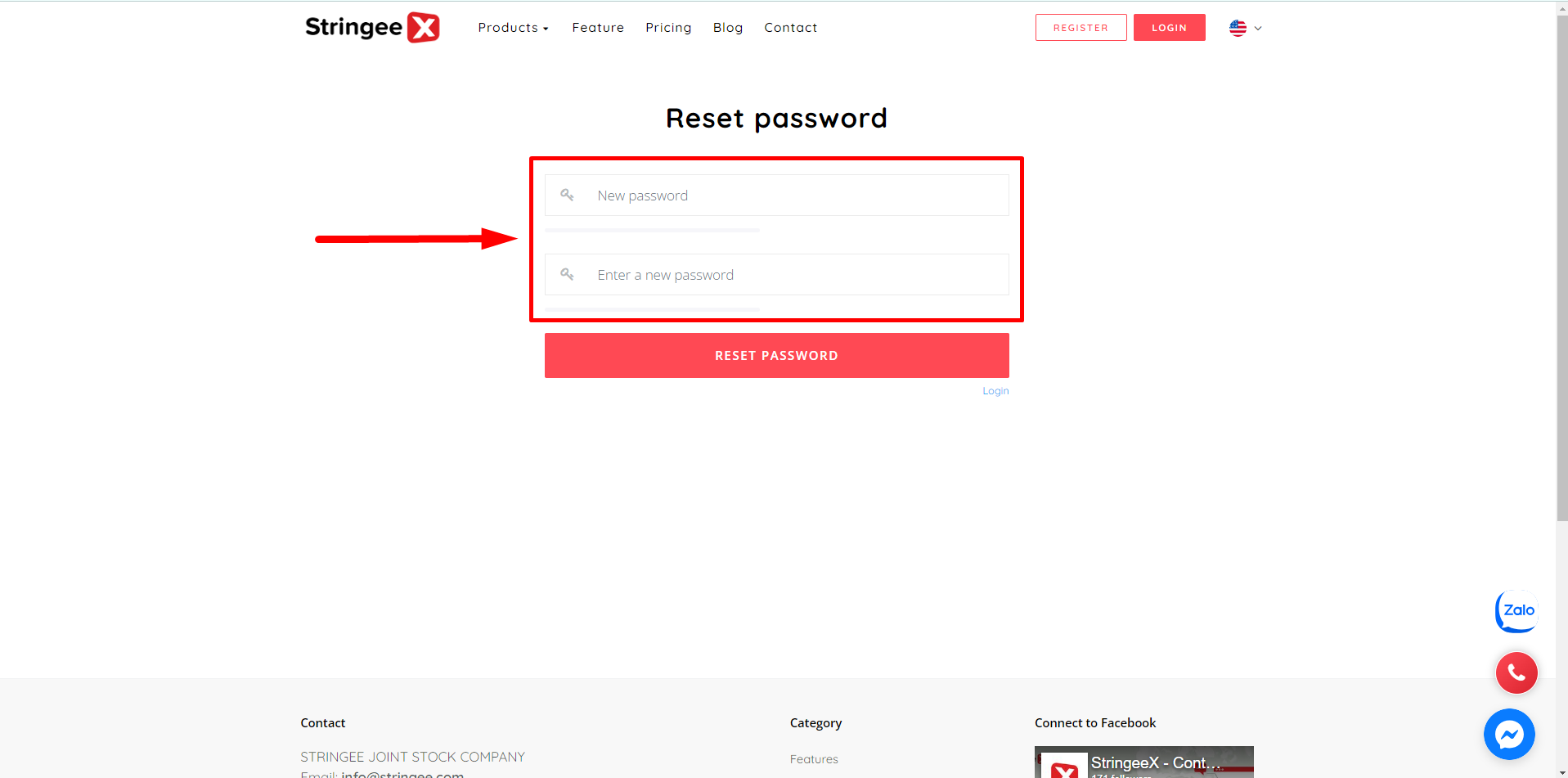
**Step 4:** Change a new password

The user enters new password information and clicks "Reset password".

<figure><img src="/files/XSPWbjkLZlmHiMubNr1V" alt=""><figcaption><p>Image 4: Change the new password</p></figcaption></figure>