# 2. Log in - Log out
## Log in
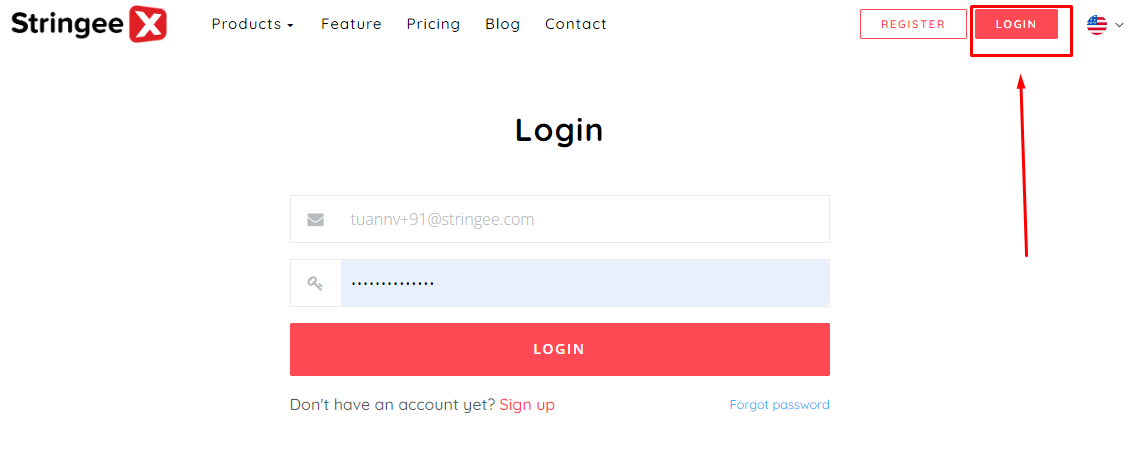
* Step 1: Open system on page [Stringeex.com](https://stringeex.com/vi)
* Step 2: Log in to the system by entering the following fields and click "Login":
• Email address
• Password
**Note**: The registered email is not case sensitive. When logging into StringeeX, the system will process uppercase characters to lowercase characters.
_If_ _you forget your login password, please select forgot password and enter your email to retrieve your password. Then log in to your email, click on the link sent by StringeeX Contact Center to reset your password and log in to StringeeX._ [_Learn more here._](../iv.-frequently-asked-questions/1.-forget-a-password)
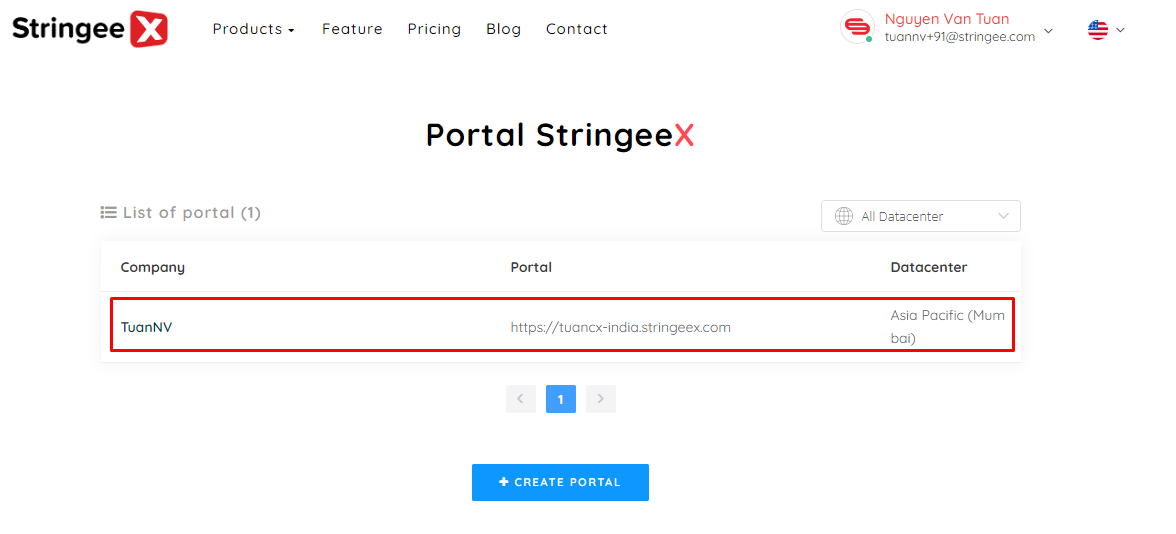
* Step 3: Select portal as the name of the registered business/individual
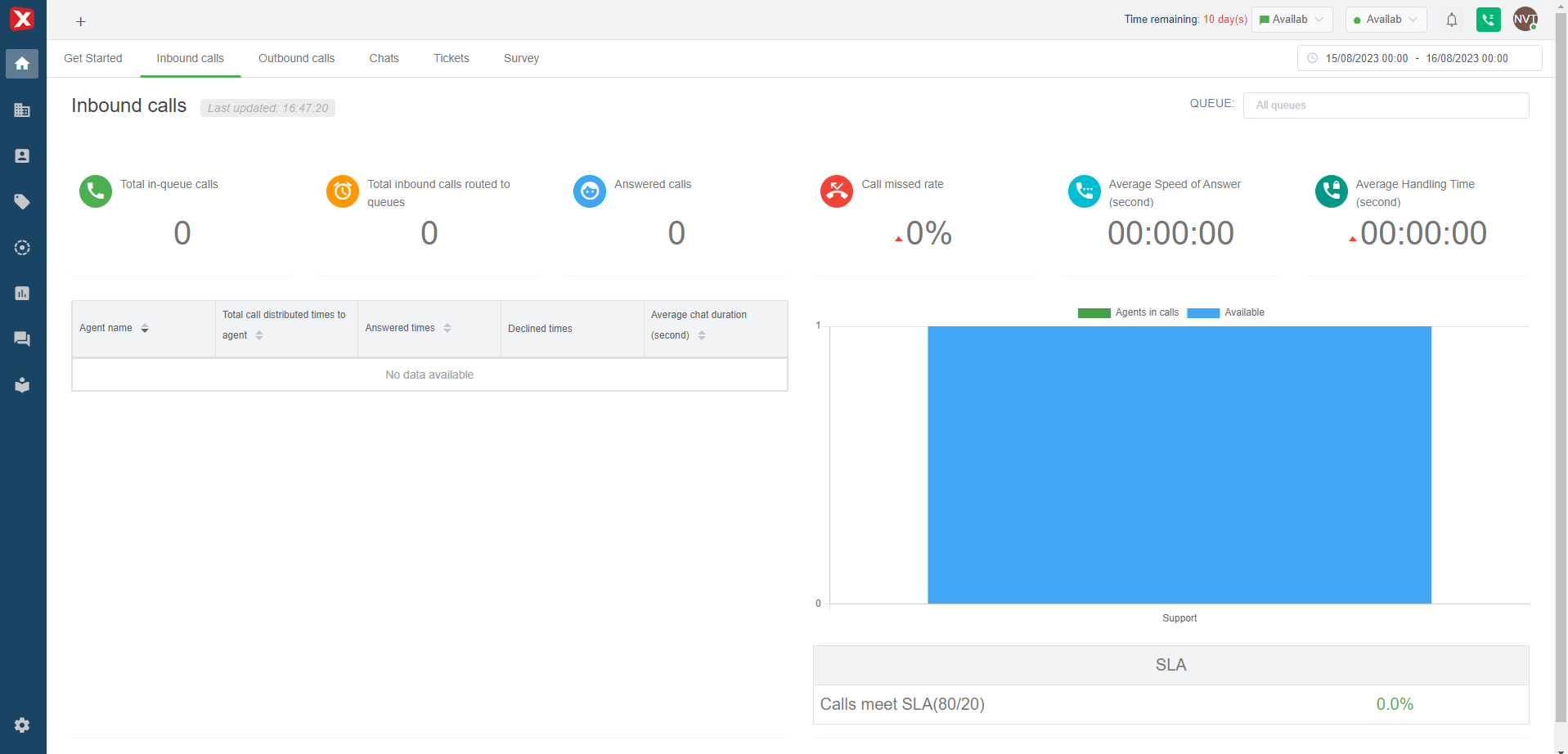
Then, the system will return the screen as below: